建筑结构的准备 - 完整的建筑结构:修订间差异
(建立内容为“<!--Case 234899--> <IS_HELP id="HS127"/> {{Article table |commercial_product1=InstalSystem 5 |p2 =<!--gdy jest kolejny produkt handlowy, zamienić…”的新页面) |
无编辑摘要 标签:手工回退 |
||
| (未显示2个用户的117个中间版本) | |||
| 第19行: | 第19行: | ||
==说明== | ==说明== | ||
本文描述了一完整的建筑结构的创建,包括楼层的定义和以下类型的图形对象的创建:''<IS_TS id=iNameKonstrSciana/>'' 、''<IS_TS id=Slab/>'' 、''<IS_TS id=Roof/>'' 以及放置在这些楼层上并构成建筑结构的''<IS_TS id=pinNameDrzwi/>'' 、''<IS_TS id=pinNameOkno/>'' 等。基于这些对象,就可自动识别出建筑设计中的房间。也可基于为每一楼层导入的外部文件的''<IS_TS id=lystrGraphicBackground/>'' 图形来创建此类结构。 | |||
完整的建筑结构可用于以下的设计,包括: | |||
* | * 使用带有热负荷计算配置的软件包进行热负荷的计算 | ||
* | * 需要有墙壁、天花板和屋顶存在的''<IS_TS id=InstalacjeGrzewcze/>'', ''<IS_TS id=InstalacjeChlodnicze/>'', ''<IS_TS id=InstalacjeWodociagowe/>'' 以及''<IS_TS id=InstalacjeKanalizacyjne/>'' 的各类设计。 | ||
==网络研讨会== | ==网络研讨会== | ||
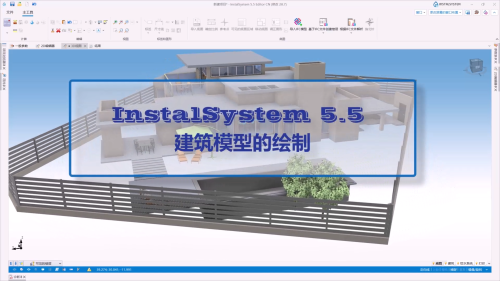
''' | '''欢迎观看我们的视频教程,视频中有对本文所述的功能进行讲解和介绍的内容''' <br/>[[File:建筑模型的绘制.png|500 px|left|thumb|'''[[视频:InstalSystem 5.5 - 建筑模型的绘制]]'''|link=https://www.bilibili.com/video/BV1t4arzZEwa?t/]]<br clear="all"/> | ||
== | ==在程序中的位置== | ||
===<IS_TS id=StoreyManagement/>=== | ===<IS_TS id=StoreyManagement/>=== | ||
* ''<IS_TS id=StoreyManagement/>'' | * ''<IS_TS id=StoreyManagement/>'' 位于''<IS_TS id=rsDanogi/>'' 窗口的''<IS_TS id=btDaneBudynku/>'' 选项卡中。<br/>[[File:楼层管理1.png|900 px|left|thumb|1. <IS_TS id=StoreyManagement/>.]]<br clear="all"/> | ||
=== | ===导入底图=== | ||
* | * 在''<IS_TS id=GraphicalEdit/>'' 窗口,当进入''<IS_TS id=lystrGraphicBackground/>'' 编辑器后,与导入底图相关的部件和功能图标位于''<IS_TS id=NarzedziaGlowne/>'' 选项卡的''<IS_TS id=lystrGraphicBackground/>'' 工具栏内。<br/>[[File:导入底图.png|900 px|left|thumb|2. <IS_TS id=btImportujPodkladZPlikuDXF/>]]<br clear="all"/> | ||
=== | ===建筑结构部件=== | ||
* | * 在''<IS_TS id=GraphicalEdit/>'' 窗口,进入''<IS_TS id=lystrFloors/>'' 编辑器,与建筑结构相关的部件和功能图标位于''<IS_TS id=NarzedziaGlowne/>'' 选项卡的''<IS_TS id=lystrFloors/>'' 工具栏内。<br/>[[File:导入建筑图.png|900 px|left|thumb|3. 建筑结构部件]]<br clear="all"/> | ||
===<IS_TS id=BuildingStructureCalculation/>=== | ===<IS_TS id=BuildingStructureCalculation/>=== | ||
* ''<IS_TS id=BuildingStructureCalculation/>'' | * ''<IS_TS id=BuildingStructureCalculation/>'' 位于''<IS_TS id=NarzedziaGlowne/>'' 选项卡的''<IS_TS id=sObliczenie/>'' 工具栏内。<br/>[[File:计算建筑结构.png|900 px|left|thumb|4. <IS_TS id=BuildingStructureCalculation/>]]<br clear="all"/> | ||
== | ==应用举例== | ||
=== | ===创建一楼层=== | ||
{{Info}} [[ | {{Info}} [[建筑结构的准备#建筑的楼层|建筑结构的准备 - 创建楼层]]。</br></br> | ||
=== | ===导入底图=== | ||
{{Info}} [[ | {{Info}} [[建筑结构的准备#底图|建筑结构的准备 - 导入底图]]。</br></br> | ||
===''' | ==='''手动编辑房间并自动识别墙、楼板和屋顶'''=== | ||
==== | ====插入手动房间==== | ||
''<IS_TS id=rsPomieszczenie/>'' ''<IS_TS id=PomieszczenieReczne/>'' | ''<IS_TS id=rsPomieszczenie/>'' ''<IS_TS id=PomieszczenieReczne/>'' 由具有活动顶点的多边形表示。每个房间都是在生成建筑结构和进行''<IS_TS id=BuildingStructureCalculation/>'' 之前绘制完成的。''<IS_TS id=rsPomieszczenie/>'' ''<IS_TS id=PomieszczenieReczne/>'' 的形状可通过以下方式进行更改: | ||
* 在''<IS_TS id=GraphicalEdit/>'' 窗口中,移动活动顶点的位置, | |||
* | * 使用''<IS_TS id=InsertEndPoint/>'' 功能,在多边形的任意一边添加另一个顶点,然后更改其位置。{{info}} [[建筑结构的准备 - 房间布置图]]。</br></br> | ||
* | |||
====插入建筑外轮廓==== | |||
使用''<IS_TS id=ObrysBud/>'' 功能,在建筑平面图上描出建筑周围的外轮廓线。当进入''<IS_TS id=lystrFloors/>'' 编辑器,就可在''<IS_TS id=NarzedziaGlowne/>'' 选项卡的''<IS_TS id=lystrFloors/>'' 工具栏内看到''<IS_TS id=ObrysBud/>'' 功能图标。<br/> | |||
==== | 提示: | ||
*当相邻楼层上的建筑轮廓相同时,可以创建一个包含相同形状所有楼层的公共''<IS_TS id=ObrysBud/>'' 。 | |||
*当连续楼层上的建筑轮廓彼此不同时,必须在每个楼层上绘制单独的''<IS_TS id=ObrysBud/>'' 。 | |||
* | |||
* | |||
====<IS_TS id=rpGenerowanieKonstrukcji/>==== | ====<IS_TS id=rpGenerowanieKonstrukcji/>==== | ||
* | *当进入''<IS_TS id=lystrFloors/>'' 编辑器后,就可在''<IS_TS id=NarzedziaGlowne/>'' 选项卡的''<IS_TS id=lystrFloors/>'' 工具栏内访问该操作。</br>[[File:建筑生成器.png|900 px|left|thumb|5. <IS_TS id=rpGenerowanieKonstrukcji/>]]<br clear="all"/> | ||
*''<IS_TS id=rpGenerujScianyIStropyDesc/>'' | *''<IS_TS id=rpGenerujScianyIStropyDesc/>'' 可以由程序通过识别在设计中的房间和建筑的外部轮廓之间的空间去创建这些隔断。<br/> [[File:建筑生成器视频封面.png|900 px|left|thumb|'''[[视频:建筑生成器]]'''|link=https://www.bilibili.com/video/BV1ue4y1y7Vw/]] <br clear="all"/> <br clear="all"/> | ||
* | *在完成''<IS_TS id=rpGenerujScianyIStropyDesc/>'' 操作后,就可进行''<IS_TS id=BuildingStructureCalculation/>'' 。如果建筑结构中没有错误,此阶段的所有''<IS_TS id=rsPomieszczenie/>'' ''<IS_TS id=PomieszczenieReczne/>'' 将转换为''<IS_TS id=rsPomieszczenie/>'' ''<IS_TS id=PomieszczenieAutomatyczne/>'' 。''<IS_TS id=rsPomieszczenie/>'' ''<IS_TS id=PomieszczenieAutomatyczne/>'' 的形状是由''<IS_TS id=iNameKonstrSciana/>'' ,''<IS_TS id=Slab/>'' 和''<IS_TS id=Roof/>'' 这些限制类部件所确定的。 | ||
* | *由此生成的建筑结构应再通过插入''<IS_TS id=pinNameOkno/>'' ,''<IS_TS id=pinNameDrzwi/>'' ,''<IS_TS id=pinNameOtworWScianie/>'' ,''<IS_TS id=rpOtworWstropie/>'' 等部件进行补充完善。''<IS_TS id=Roof/>'' 的实际形状应根据以下指南定义。由此操作而创建的、并构成了建筑结构的''<IS_TS id=iNameKonstrSciana/>'' 部件,可根据以下信息进行进一步编辑。 | ||
==='''<IS_TS id=rsPomieszczenie/> - | ==='''<IS_TS id=rsPomieszczenie/> - 就是由所绘制的围护结构封闭起来的一个区域'''=== | ||
''<IS_TS id=rsPomieszczenie/>'' ''<IS_TS id=PomieszczenieAutomatyczne/>'' 也可以在由插入的图形围护结构(如''<IS_TS id=iNameKonstrSciana/>'', ''<IS_TS id=Slab/>'', ''<IS_TS id=Roof/>'' 部件)的边缘(表面)所包围的区域中创建。这就需要先手动绘制建筑结构,然后进行''<IS_TS id=BuildingStructureCalculation/>'' ,如果没有错误,程序就会帮我们自动生成''<IS_TS id=rsPomieszczenie/>'' ''<IS_TS id=PomieszczenieAutomatyczne/>'' 。与''<IS_TS id=rsPomieszczenie/>'' ''<IS_TS id=PomieszczenieReczne/>'' 不同,选择''<IS_TS id=rsPomieszczenie/>'' ''<IS_TS id=PomieszczenieAutomatyczne/>'' 后,无法对其进行编辑。如要修改''<IS_TS id=rsPomieszczenie/>'' ''<IS_TS id=PomieszczenieAutomatyczne/>'' 的表面和形状,只能修改构成''<IS_TS id=rsPomieszczenie/>'' 的结构部件的位置和改变其形状,包括房间的分区和合并,操作完成后都需要再次运行''<IS_TS id=BuildingStructureCalculation/>'' 。</br> | |||
如要通过绘制物理部件来创建围护结构,请执行以下步骤。 | |||
==== | ====插入墙==== | ||
===== | =====编辑<IS_TS id=iNameKonstrSciana/>部件===== | ||
*''<IS_TS id=iNameKonstrSciana/>'' | *''<IS_TS id=iNameKonstrSciana/>'' 可作为插入到设计中的一系列连续的单面墙通过特殊连接点连接在一起的构件。在''<IS_TS id=GraphicalEdit/>'' 窗口中选择''<IS_TS id=iNameKonstrSciana/>'' 后,可以使用专用编辑器来更改构件的尺寸和形状,即: | ||
** | ** 依更改方向的指示更改长度 | ||
** | ** 依指示的墙的一边增减墙的厚度 | ||
** | ** 将所插入的直墙改为弧面墙 | ||
** | ** 根据编辑的位置创建部件的镜像。 | ||
* | *此外,在''<IS_TS id=DataEditorTable/>'' 窗口中,可以将构件类型更改为''<IS_TS id=ScianaKurtynowa/>'' ,也可以直接从工具栏插入此类型的墙,以表示设计中的幕墙、玻璃或立面。 | ||
* | * 每面墙的''<IS_TS id=strpnScianaGrubosc/>'' 可以指定为0,这样的墙可以用来分隔房间,而无需创建逻辑分区。{{Info}} [[房间热负荷的设计计算]]。</br>[[File:墙的编辑视频封面.png|900 px|left|thumb|'''[[视频:InstalSystem 5 - 墙的编辑]]'''|link=https://www.bilibili.com/video/BV18Y4y1T7Nb]] <br clear="all"/> <br clear="all"/> | ||
===== | =====使用墙创建结构===== | ||
插入一系列''<IS_TS id=iNameKonstrSciana/>'' 构件,在''<IS_TS id=DataEditorTable/>'' 中预先指定墙的厚度,并沿底图上墙的内边缘移动鼠标光标。如果底图来自DWG文件,就可利用在底图上对指定图层的自动捕捉功能。插入''外墙'' 后,以类似方式再插入''内墙'' 。<br/> | |||
{{#ev:youku|id_XMjYxNTk0MjM2NA|900||||rel=0}} <br clear="all"/> | |||
==== | ====插入楼板==== | ||
插入''<IS_TS id=Slab/>'' 。通常一块楼板覆盖一层的建筑外轮廓。<br/>{{#ev:youku|id_XMjYxNTkzOTQ2MA|900||||rel=0}} <br clear="all"/> | |||
如果''<IS_TS id=Slab/>'' 伸出了楼层上的建筑轮廓之外,且其上方没有''<IS_TS id=rsPomieszczenie/>'' ,则可通过''<IS_TS id=ZmienStropWDach/>'' 功能,将其转换为''<IS_TS id=Roof/>'' 。该功能可从''<IS_TS id=Slab/>'' 构件的弹出菜单中访问。转换后,构件的形状、厚度和标高保持不变,仅转化成了平的''<IS_TS id=Roof/>'' 。</br></br> | |||
==== | ====插入屋顶==== | ||
插入''<IS_TS id=Roof/>''。<br/>{{#ev:youku|id_XMjYxNTk0NjE0OA|900||||rel=0}} <br clear="all"/> | |||
如果''<IS_TS id=Roof/>'' 不是平的, 也可创建多面坡''<IS_TS id=Roof/>''。<br/>{{Info}} [[建筑结构的准备 - 创建不同建筑的屋顶]]。 | |||
<br/> | <br/> | ||
==== | ====检查所创建的建筑结构==== | ||
为了检查所绘制的建筑结构是否正确,需执行''<IS_TS id=BuildingStructureCalculation/>'' 。计算完成后,在建筑结构封闭的区域内均可识别出所有创建的''<IS_TS id=rsPomieszczenie/>'' ''<IS_TS id=PomieszczenieAutomatyczne/>'' 部件。</br></br> | |||
===''' | ==='''插入窗, 门和墙上开洞'''=== | ||
* | *插入: ''<IS_TS id=pinNameOkno/>'', ''<IS_TS id=pinNameDrzwi/>'', ''<IS_TS id=pinNameOtworWScianie/>'', ''<IS_TS id=pinWneka/>''。<br/>{{#ev:youku|id_XMjYxNTk0MTAzNg|900||||rel=0}} <br clear="all"/> | ||
*''<IS_TS id=pinNameOtworWScianie/>'' | *''<IS_TS id=pinNameOtworWScianie/>'' 将一楼层上的两个相邻房间连接起来。要连接房间,请在''<IS_TS id=pinNameOtworWScianie/>'' 的''<IS_TS id=DataEditorTable/>'' 中选择''<IS_TS id=OpeningConnectsRooms/>'',然后运行''<IS_TS id=BuildingStructureCalculation/>''。</br>[[File:房间合并.png|900 px|left|thumb|5. 通过墙上开洞连接房间]]<br clear="all"/> | ||
*''<IS_TS id=rpOtworWstropie/>'' | *''<IS_TS id=rpOtworWstropie/>'' 连接相邻楼层上的两个房间,并创建一个多层''<IS_TS id=rsPomieszczenie/>'' 。要连接房间,请在楼板中插入''<IS_TS id=rpOtworWstropie/>'' ,然后运行''<IS_TS id=BuildingStructureCalculation/>'' 。<br/>''<IS_TS id=rpOtworWstropie/>'' 也能通过点击[[File:Delete-ikon.png|18 px|]]来删除。 <br/>{{#ev:youku|id_XMzIyNTYyNDQyNA|900||||rel=0}} <br clear="all"/> | ||
{{Info}} [[ | {{Info}} [[建筑结构的准备 - 创建含有多个楼层的房间]]. | ||
* | * 如有必要,在绘制的''<IS_TS id=Roof/>'' 中插入''<IS_TS id=pinNameOknoDachowe/>'' 。<br/>[[File:在屋顶上安装天窗视频封面.png|900 px|left|thumb|'''[[视频:InstalSystem 5 - 在屋顶上安装天窗]]'''|link=https://www.bilibili.com/video/BV1Te411M7Mb/]] <br clear="all"/> <br clear="all"/> | ||
==='''<IS_TS id=BuildingStructureCalculation/>'''=== | ==='''<IS_TS id=BuildingStructureCalculation/>'''=== | ||
''<IS_TS id=BuildingStructureCalculation/>'' | 点击''<IS_TS id=BuildingStructureCalculation/>'' 将会进行与创建完整建筑结构相关的许多操作,其中包括: | ||
* | *用屋顶平面切割墙壁。 | ||
* | * 将''房间 手动'' 部件转换为由通过运行''<IS_TS id=rpGenerujScianyIStropyDesc/>'' 所创建的结构部件所封闭的房间为''房间 自动'' 部件。 | ||
* | * 基于水平和垂直隔断自动识别房间,可连接位于同一楼层的房间,也可创建多楼层房间。 | ||
* | * 校正墙体几何形状。此外,当''<IS_TS id=BuildingStructureCalculation/>'' 导致由于正确解析所创建的建筑结构的问题而引起的错误时,可以使用''<IS_TS id=CorrectWallGeometry/>'' 功能来进行''<IS_TS id=CorrectWallGeometryDesc/>'' 。{{Info}} [[墙体几何尺寸修正]]。 | ||
* | * 诊断并指出在建筑结构内引起错误的部件。 | ||
* | * 如果启用了''<IS_TS id=ZakresProjektu/>'' ''<IS_TS id=ObliczeniaCieplneBudynku/>'' ,则自动识别''<IS_TS id=ScopeOZC_T_Short/>'' 中显示的逻辑分区,并为其分配 ''<IS_TS id=rsPrzegrody/>'' 。{{Info}} [[房间热负荷的设计计算]]。</br> | ||
''' | '''每次修改建筑结构后,必须再次运行''<IS_TS id=ObliczeniaCieplneBudynku/>'' '''<br/>[[File:建筑结构的计算视频封面.png|900 px|left|thumb|'''[[视频:InstalSystem 5 - 建筑结构的计算]]'''|link=https://www.bilibili.com/video/BV17Y4y1N7uA/]] <br clear="all"/> <br clear="all"/> | ||
<!-- | <!-- | ||
===Weryfikacja poprawności struktury budynku=== | ===Weryfikacja poprawności struktury budynku=== | ||
| 第126行: | 第123行: | ||
sISFKonstrukcjaPrzegrody--> | sISFKonstrukcjaPrzegrody--> | ||
== | ==其它信息== | ||
=== | ===分割水平建筑构件=== | ||
如果需要分割建筑的平面构件,可以使用''<IS_TS id=PodzialPowierzchniBezDylatacji/>'' 。该功能图标位于:在''<IS_TS id=GraphicalEdit/>'' 窗口,进入''<IS_TS id=lystrFloors/>'' 编辑器,在''<IS_TS id=NarzedziaGlowne/>'' 选项卡的''<IS_TS id=ctgstringEdycja/>'' 工具栏内。分割可以影响平面结构部件,如:''<IS_TS id=iNameKonstrPomieszczenie/>'' ''<IS_TS id=PomieszczenieReczne/>'', ''<IS_TS id=Roof/>'', ''<IS_TS id=Slab/>'' 。<br/>[[File:分割建筑构件.png|900 px|left|thumb|6. <IS_TS id=PodzialPowierzchniBezDylatacji/>]]<br clear="all"/> | |||
例如,当下方楼层上的''<IS_TS id=ObrysBud/>'' 超出了当前楼层的建筑轮廓,并且在这些楼层之间创建的楼板一部分是屋顶时,就可以使用此功能。<br/>[[File:楼板的分割与转为屋顶.png|900 px|left|thumb|'''[[视频:InstalSystem 5 - 楼板的分割与转为屋顶]]'''|link=https://www.bilibili.com/video/BV1ye4y1871a/]] <br clear="all"/> <br clear="all"/> | |||
===建筑单元=== | |||
可以处理自动创建的''<IS_TS id=iNameJednostkaBudynkuPlural/>''。{{Info}} [[建筑单元]]。 | |||
=== | ===房间编号=== | ||
{{Info}} [[建筑结构的准备#9.给房间编号|建筑结构的准备 - 给房间编号]]。</br></br> | |||
=== | ===地面建模=== | ||
{{ | {{info}} [[地面建模]]. </br></br> | ||
=== | ===部件外观的配置=== | ||
{{info}} [[ | 部件: ''<IS_TS id=iNameKonstrPomieszczenie/>'' (''<IS_TS id=PomieszczenieReczne/>'' 和''<IS_TS id=PomieszczenieAutomatyczne/>''), 以及建筑结构部件: ''<IS_TS id=iNameKonstrSciana/>'', ''<IS_TS id=Slab/>'', ''<IS_TS id=Roof/>'', ''<IS_TS id=HolesInWall/>'', ''<IS_TS id=ObrysBud/>'' 在样式树中都有自己的位置,这些部件的外观以及它们的标签的外观都可进行单独的配置。{{info}} [[一般参数#部件外观和说明配置|部件外观和说明配置]]。 | ||
[[Category:InstalSystem 5]] | [[Category:InstalSystem 5]] | ||
[[Category: | [[Category:功能和工具]] | ||
<!-- Do not write text below this tag --> | <!-- Do not write text below this tag --> | ||
<br class="iwlinks"/>[[ | <br class="iwlinks"/>[[en:Preparation of building structure - Complete building structure|Preparation of building structure - Complete building structure]][[bg:Подготовка конструкция на сграда - Завършване на сградна конструкция|Подготовка конструкция на сграда - Завършване на сградна конструкция]] | ||
2026年10月24日 (六) 11:08的最新版本
| 产品 | InstalSystem 5 |
| 文章类型 | 功能和工具 |
| 版本的最新内容 | 2022-02-25 |
说明
本文描述了一完整的建筑结构的创建,包括楼层的定义和以下类型的图形对象的创建:墙 、楼板 、屋顶 以及放置在这些楼层上并构成建筑结构的门 、窗 等。基于这些对象,就可自动识别出建筑设计中的房间。也可基于为每一楼层导入的外部文件的底图 图形来创建此类结构。 完整的建筑结构可用于以下的设计,包括:
- 使用带有热负荷计算配置的软件包进行热负荷的计算
- 需要有墙壁、天花板和屋顶存在的供热系统计算, 供冷系统计算, 给水系统计算 以及排水系统计算 的各类设计。
网络研讨会
欢迎观看我们的视频教程,视频中有对本文所述的功能进行讲解和介绍的内容
在程序中的位置
楼层管理
- 楼层管理 位于一般参数 窗口的建筑和环境 选项卡中。
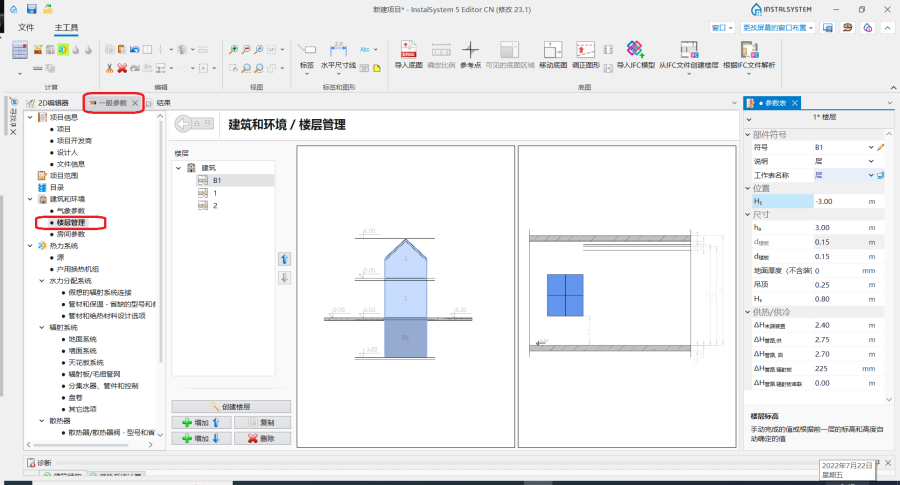
1. 楼层管理.

导入底图
- 在2D编辑器 窗口,当进入底图 编辑器后,与导入底图相关的部件和功能图标位于主工具 选项卡的底图 工具栏内。
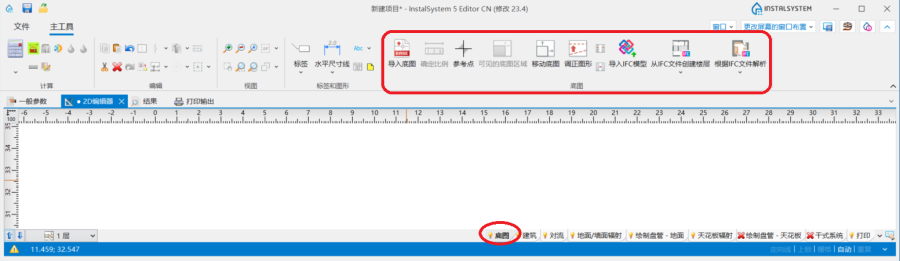
2. 导入底图

建筑结构部件
- 在2D编辑器 窗口,进入建筑 编辑器,与建筑结构相关的部件和功能图标位于主工具 选项卡的建筑 工具栏内。
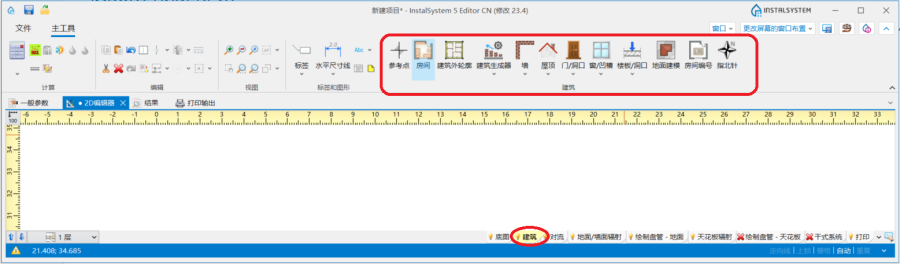
3. 建筑结构部件

建筑结构计算
- 建筑结构计算 位于主工具 选项卡的计算 工具栏内。
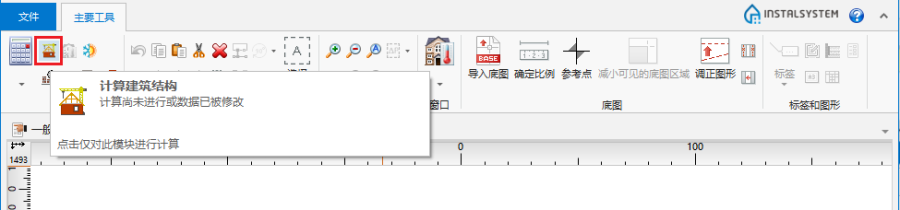
4. 建筑结构计算

应用举例
创建一楼层
更多信息,见: 建筑结构的准备 - 创建楼层。
导入底图
更多信息,见: 建筑结构的准备 - 导入底图。
手动编辑房间并自动识别墙、楼板和屋顶
插入手动房间
房间 手动 由具有活动顶点的多边形表示。每个房间都是在生成建筑结构和进行建筑结构计算 之前绘制完成的。房间 手动 的形状可通过以下方式进行更改:
- 在2D编辑器 窗口中,移动活动顶点的位置,
- 使用插入分割点 功能,在多边形的任意一边添加另一个顶点,然后更改其位置。更多信息,见: 建筑结构的准备 - 房间布置图。
插入建筑外轮廓
使用建筑外轮廓 功能,在建筑平面图上描出建筑周围的外轮廓线。当进入建筑 编辑器,就可在主工具 选项卡的建筑 工具栏内看到建筑外轮廓 功能图标。
提示:
- 当相邻楼层上的建筑轮廓相同时,可以创建一个包含相同形状所有楼层的公共建筑外轮廓 。
- 当连续楼层上的建筑轮廓彼此不同时,必须在每个楼层上绘制单独的建筑外轮廓 。
建筑生成器
- 当进入建筑 编辑器后,就可在主工具 选项卡的建筑 工具栏内访问该操作。
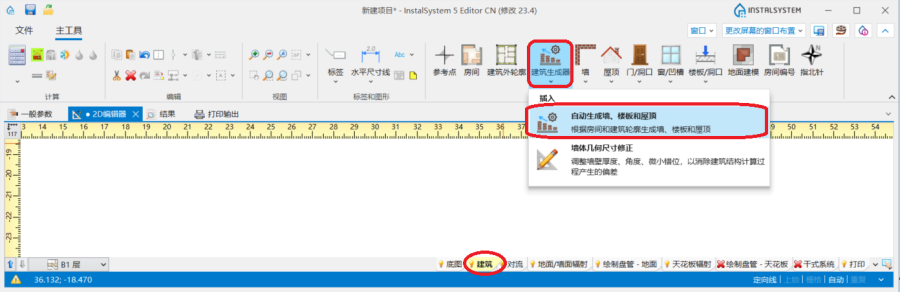
5. 建筑生成器 - 根据房间和建筑轮廓生成墙、楼板和屋顶 可以由程序通过识别在设计中的房间和建筑的外部轮廓之间的空间去创建这些隔断。
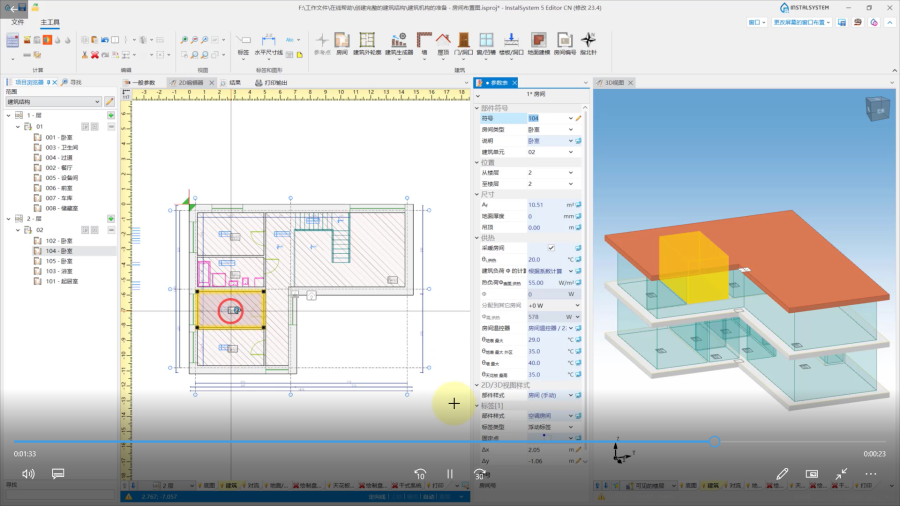
视频:建筑生成器
- 在完成根据房间和建筑轮廓生成墙、楼板和屋顶 操作后,就可进行建筑结构计算 。如果建筑结构中没有错误,此阶段的所有房间 手动 将转换为房间 自动 。房间 自动 的形状是由墙 ,楼板 和屋顶 这些限制类部件所确定的。
- 由此生成的建筑结构应再通过插入窗 ,门 ,墙洞 ,楼板开洞 等部件进行补充完善。屋顶 的实际形状应根据以下指南定义。由此操作而创建的、并构成了建筑结构的墙 部件,可根据以下信息进行进一步编辑。

房间 - 就是由所绘制的围护结构封闭起来的一个区域
房间 自动 也可以在由插入的图形围护结构(如墙, 楼板, 屋顶 部件)的边缘(表面)所包围的区域中创建。这就需要先手动绘制建筑结构,然后进行建筑结构计算 ,如果没有错误,程序就会帮我们自动生成房间 自动 。与房间 手动 不同,选择房间 自动 后,无法对其进行编辑。如要修改房间 自动 的表面和形状,只能修改构成房间 的结构部件的位置和改变其形状,包括房间的分区和合并,操作完成后都需要再次运行建筑结构计算 。
如要通过绘制物理部件来创建围护结构,请执行以下步骤。
插入墙
编辑墙部件
- 墙 可作为插入到设计中的一系列连续的单面墙通过特殊连接点连接在一起的构件。在2D编辑器 窗口中选择墙 后,可以使用专用编辑器来更改构件的尺寸和形状,即:
- 依更改方向的指示更改长度
- 依指示的墙的一边增减墙的厚度
- 将所插入的直墙改为弧面墙
- 根据编辑的位置创建部件的镜像。
- 此外,在参数表 窗口中,可以将构件类型更改为幕墙 ,也可以直接从工具栏插入此类型的墙,以表示设计中的幕墙、玻璃或立面。
- 每面墙的厚度 可以指定为0,这样的墙可以用来分隔房间,而无需创建逻辑分区。更多信息,见: 房间热负荷的设计计算。
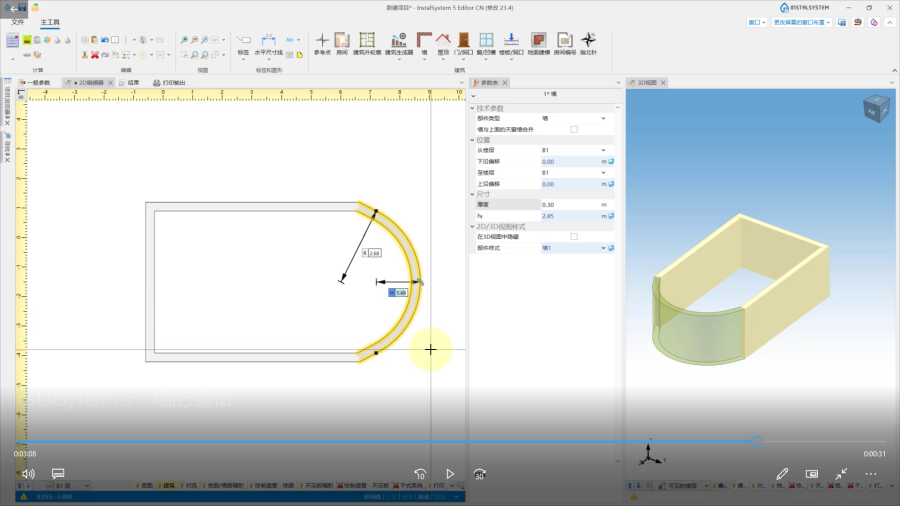
视频:InstalSystem 5 - 墙的编辑
使用墙创建结构
插入一系列墙 构件,在参数表 中预先指定墙的厚度,并沿底图上墙的内边缘移动鼠标光标。如果底图来自DWG文件,就可利用在底图上对指定图层的自动捕捉功能。插入外墙 后,以类似方式再插入内墙 。
插入楼板
插入楼板 。通常一块楼板覆盖一层的建筑外轮廓。
如果楼板 伸出了楼层上的建筑轮廓之外,且其上方没有房间 ,则可通过转换为屋顶 功能,将其转换为屋顶 。该功能可从楼板 构件的弹出菜单中访问。转换后,构件的形状、厚度和标高保持不变,仅转化成了平的屋顶 。
插入屋顶
插入屋顶。
如果屋顶 不是平的, 也可创建多面坡屋顶。
更多信息,见: 建筑结构的准备 - 创建不同建筑的屋顶。
检查所创建的建筑结构
为了检查所绘制的建筑结构是否正确,需执行建筑结构计算 。计算完成后,在建筑结构封闭的区域内均可识别出所有创建的房间 自动 部件。
插入窗, 门和墙上开洞
- 插入: 窗, 门, 墙洞, 凹槽。
- 墙洞 将一楼层上的两个相邻房间连接起来。要连接房间,请在墙洞 的参数表 中选择房间合并,然后运行建筑结构计算。
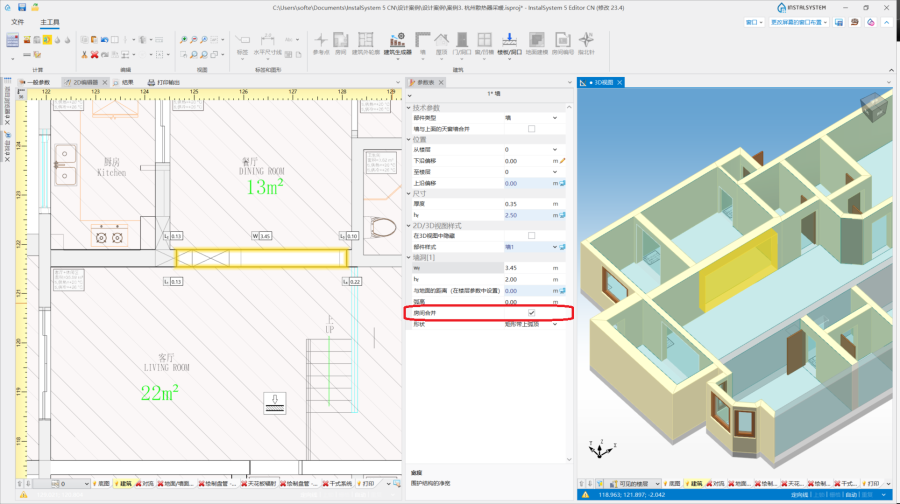
5. 通过墙上开洞连接房间 - 楼板开洞 连接相邻楼层上的两个房间,并创建一个多层房间 。要连接房间,请在楼板中插入楼板开洞 ,然后运行建筑结构计算 。
楼板开洞 也能通过点击 来删除。
来删除。


更多信息,见: 建筑结构的准备 - 创建含有多个楼层的房间.
- 如有必要,在绘制的屋顶 中插入天窗 。
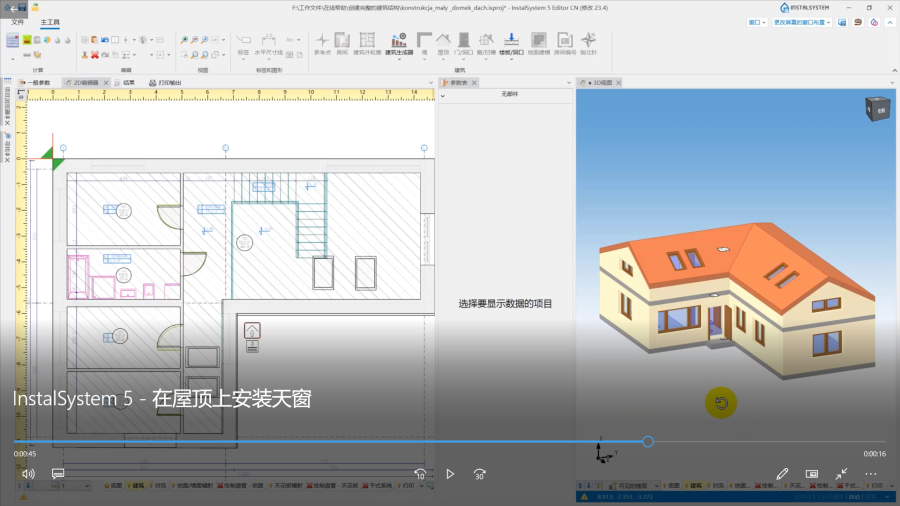
视频:InstalSystem 5 - 在屋顶上安装天窗
建筑结构计算
点击建筑结构计算 将会进行与创建完整建筑结构相关的许多操作,其中包括:
- 用屋顶平面切割墙壁。
- 将房间 手动 部件转换为由通过运行根据房间和建筑轮廓生成墙、楼板和屋顶 所创建的结构部件所封闭的房间为房间 自动 部件。
- 基于水平和垂直隔断自动识别房间,可连接位于同一楼层的房间,也可创建多楼层房间。
- 校正墙体几何形状。此外,当建筑结构计算 导致由于正确解析所创建的建筑结构的问题而引起的错误时,可以使用墙体几何尺寸修正 功能来进行调整墙壁厚度、角度、微小错位,以消除建筑结构计算过程产生的偏差 。更多信息,见: 墙体几何尺寸修正。
- 诊断并指出在建筑结构内引起错误的部件。
- 如果启用了项目范围 建筑热负荷计算 ,则自动识别热负荷计算(T) 中显示的逻辑分区,并为其分配 围护结构定义 。更多信息,见: 房间热负荷的设计计算。
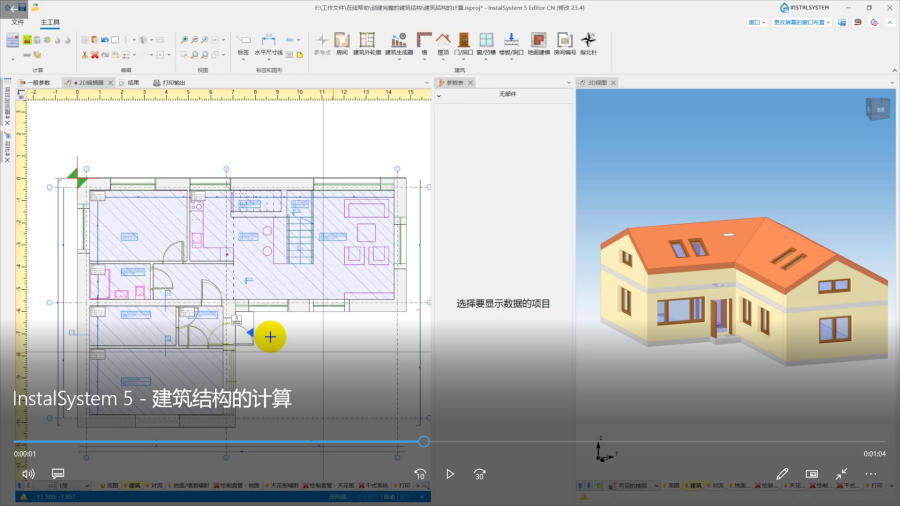
每次修改建筑结构后,必须再次运行建筑热负荷计算
其它信息
分割水平建筑构件
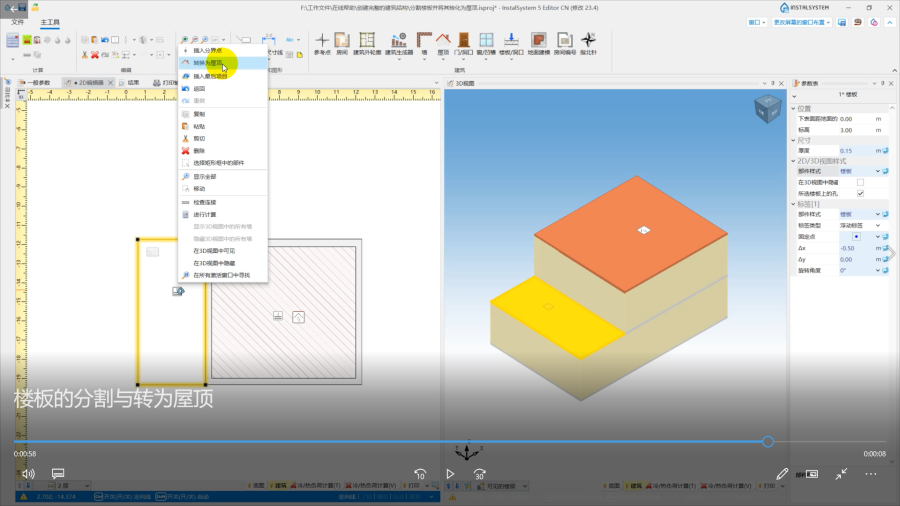
如果需要分割建筑的平面构件,可以使用建筑构件和系统装置表面分割 。该功能图标位于:在2D编辑器 窗口,进入建筑 编辑器,在主工具 选项卡的编辑 工具栏内。分割可以影响平面结构部件,如:房间 手动, 屋顶, 楼板 。

例如,当下方楼层上的建筑外轮廓 超出了当前楼层的建筑轮廓,并且在这些楼层之间创建的楼板一部分是屋顶时,就可以使用此功能。
建筑单元
可以处理自动创建的建筑单元。更多信息,见: 建筑单元。
房间编号
更多信息,见: 建筑结构的准备 - 给房间编号。
地面建模
更多信息,见: 地面建模.
部件外观的配置
部件: 房间 (手动 和自动), 以及建筑结构部件: 墙, 楼板, 屋顶, 门/窗等墙上部件, 建筑外轮廓 在样式树中都有自己的位置,这些部件的外观以及它们的标签的外观都可进行单独的配置。更多信息,见: 部件外观和说明配置。