查看和打印计算结果:修订间差异
跳转到导航
跳转到搜索
(→应用举例) |
|||
| 第28行: | 第28行: | ||
* 信息过滤。<br/> 可关闭各级别的诊断信息。系统化的处理诊断信息是非常有用的。<br/>{{#ev:youtube|1lqv4Cv-4yQ|900||||rel=0}} <br clear="all"/> | * 信息过滤。<br/> 可关闭各级别的诊断信息。系统化的处理诊断信息是非常有用的。<br/>{{#ev:youtube|1lqv4Cv-4yQ|900||||rel=0}} <br clear="all"/> | ||
* 所选部件的信息组。<br/> 此功能可以收集应用于项目中选定部件的所有诊断消息,并可在一次数据编辑操作中立即删除这些信息。<br/>{{#ev:youtube|HuKdw0XTBgc|900||||rel=0}} <br clear="all"/> | * 所选部件的信息组。<br/> 此功能可以收集应用于项目中选定部件的所有诊断消息,并可在一次数据编辑操作中立即删除这些信息。<br/>{{#ev:youtube|HuKdw0XTBgc|900||||rel=0}} <br clear="all"/> | ||
* | * 选择性的标出某一信息适用的部件。<br/> 可通过鼠标左键双击某一信息或从某一组信息适用的部件清单中选择其中之一来标出某一特定部件。<br/>{{#ev:youtube|eYFgPP9s4-M|900||||rel=0}} <br clear="all"/> | ||
* 标出某一信息适用的所有部件。<br/> | * 标出某一信息适用的所有部件。<br/> 可通过鼠标左键双击某一信息或选择菜单中的''<IS_TS id=sZaznaczWszystkieElementyWKtorychWystapilTenBlad/>'' 功能标出多个部件。<br/>{{#ev:youtube|p37gdwAq7RM|900||||rel=0}} <br clear="all"/> | ||
* 诊断信息的更多说明。 | * 诊断信息的更多说明。 | ||
** 为了清除诊断出的内容,如果需要更多对诊断信息的解释,则可参考帮助系统,此时点击信息所在行端部的 [[File:Diagnostics-hs.png|18 px|]] 按钮即可。<br/>{{#ev:youtube|MpDgczCeS44|900||||rel=0}} <br clear="all"/> | ** 为了清除诊断出的内容,如果需要更多对诊断信息的解释,则可参考帮助系统,此时点击信息所在行端部的 [[File:Diagnostics-hs.png|18 px|]] 按钮即可。<br/>{{#ev:youtube|MpDgczCeS44|900||||rel=0}} <br clear="all"/> | ||
2017年10月1日 (日) 12:53的版本
说明
本文以如下表格和图形的形式描述了项目的计算结果:
- 查看和处理诊断消息,
- 查看计算结果提示,
- 查看表中的计算结果,
- 准备要打印的计算结果表格部分,
- 准备要打印的计算结果图形部分。
程序中的位置
查看和处理诊断信息
- 查看和处理诊断信息需打开诊断 窗口。
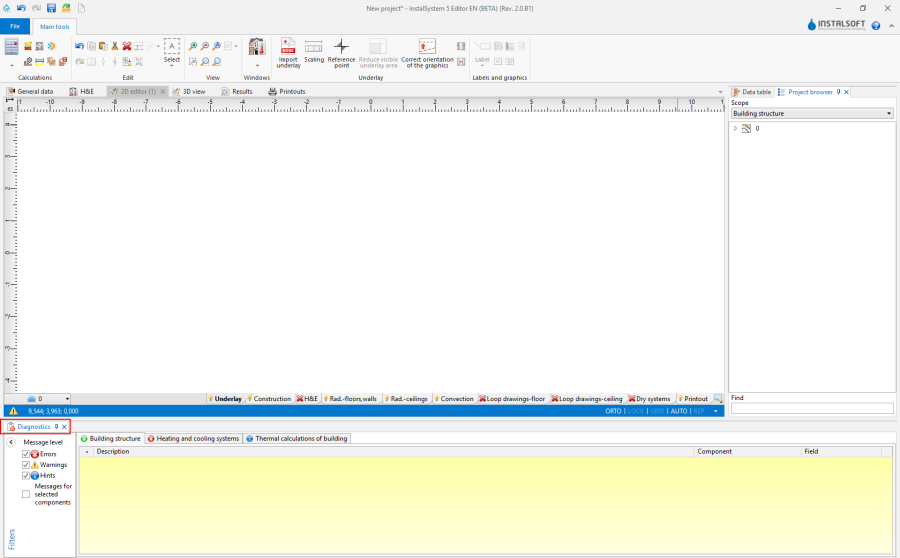
1. 诊断

查看表格中的计算结果
- 查看表格中的计算结果需打开结果 窗口。
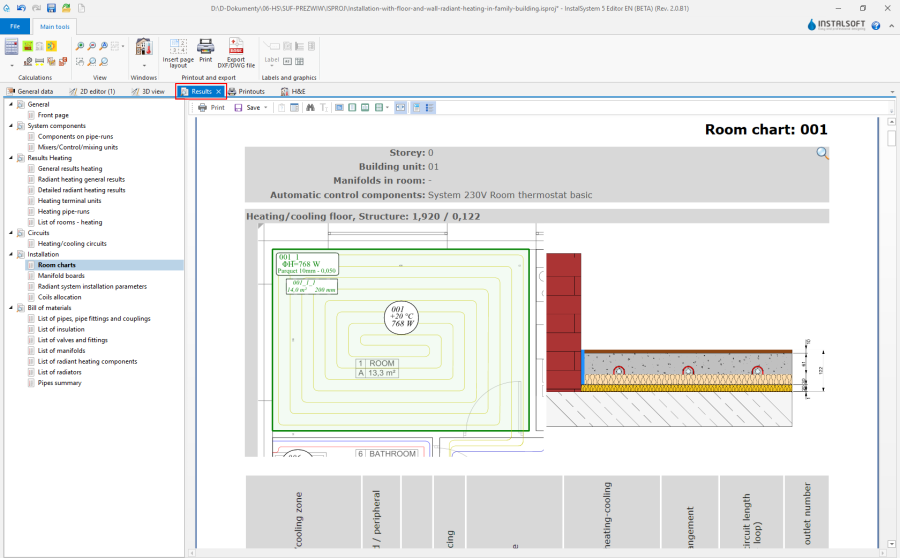
2. 结果

打印项目计算书和图形
- 打印项目计算书和图形需打开打印输出 窗口。
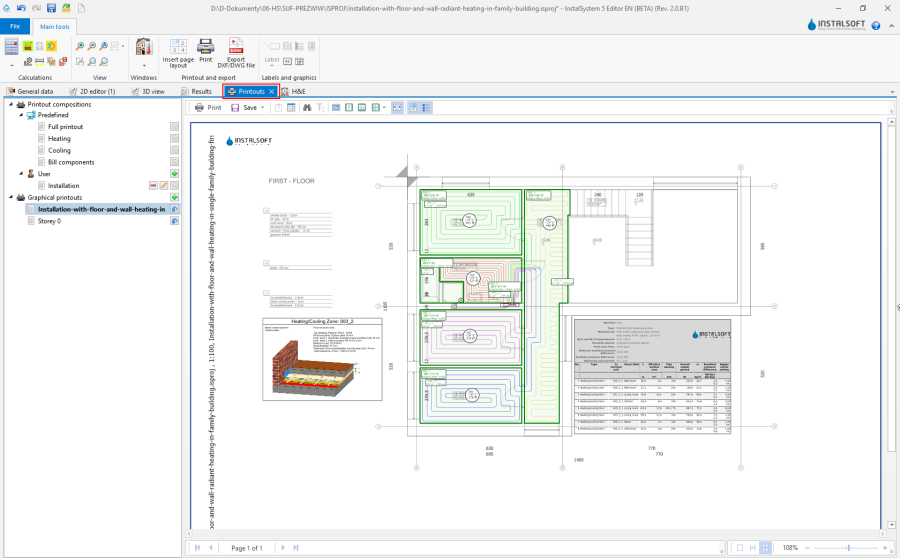
3. 打印输出

应用举例
查看和处理诊断信息
- 信息级别:
- 错误
 - 这是最重要的信息。在项目设计期间所发生的所有错误,都必须清除,否则结果将不完整。有两种类型的错误,一是致命错误,它将导致停止计算;二是一般错误,它虽然不会中断计算,但可能导致结果不可靠。
 - 警告
 - 比错误低一级的信息。警告不会停止计算或显示结果。警告通常与可能不正确的参数或结果有关,应始终检查警告信息。
 - 提示
 - 对一些参数或结果的提示或提请注意的信息。像警告一样,提示不会阻止计算和显示结果。
- 错误
- 诊断窗口的标签。
这些信息来自选定的计算范围,并提供在计算期间在选定的计算范围内所产生的不同级别的诊断信息。
4. 诊断窗口标签 - 信息过滤。
可关闭各级别的诊断信息。系统化的处理诊断信息是非常有用的。
- 所选部件的信息组。
此功能可以收集应用于项目中选定部件的所有诊断消息,并可在一次数据编辑操作中立即删除这些信息。
- 选择性的标出某一信息适用的部件。
可通过鼠标左键双击某一信息或从某一组信息适用的部件清单中选择其中之一来标出某一特定部件。
- 标出某一信息适用的所有部件。
可通过鼠标左键双击某一信息或选择菜单中的标出所有发生错误的部件 功能标出多个部件。
- 诊断信息的更多说明。
- 为了清除诊断出的内容,如果需要更多对诊断信息的解释,则可参考帮助系统,此时点击信息所在行端部的
 按钮即可。
按钮即可。
- 在说明 栏目中的选定的诊断信息意指在参数表 中或在特定的编辑器中的那个诊断值适用的特定区域。
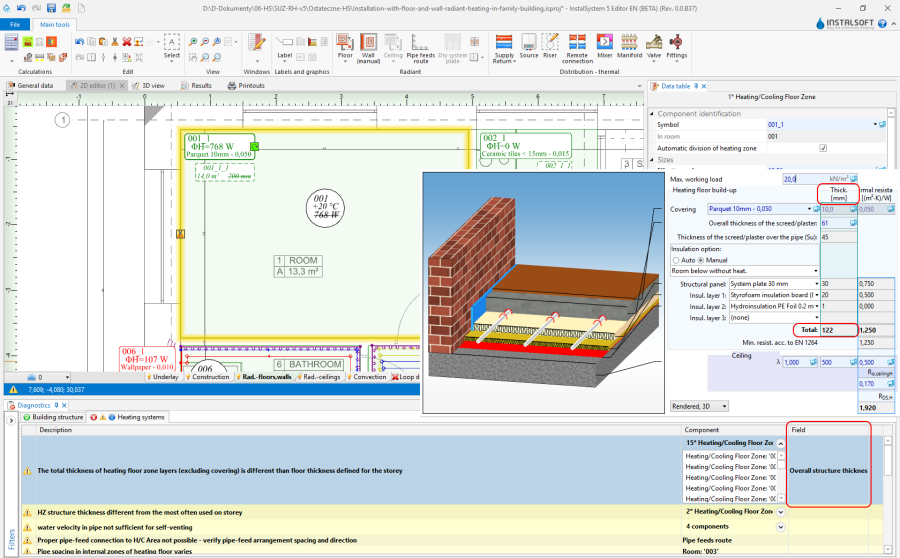
5. 诊断信息中额外信息
- 为了清除诊断出的内容,如果需要更多对诊断信息的解释,则可参考帮助系统,此时点击信息所在行端部的


Presentation of calculation results of a project that has a Not Calculated status
- The invalid or not calculated status of a project is indicated by a warning symbol displayed on the status bar.

6. Project not calculated - status bar - Invalid or not calculated results are indicated by:
- crossed out values in labels,
- question marks in hints,
- appropriate messages on invalid calculation results:
- 注:本项目尚未计算或数据自上次计算后已更改。
- 注意!项目数据已被更改还未计算更新,打印输出可能过时,请先重新计算。
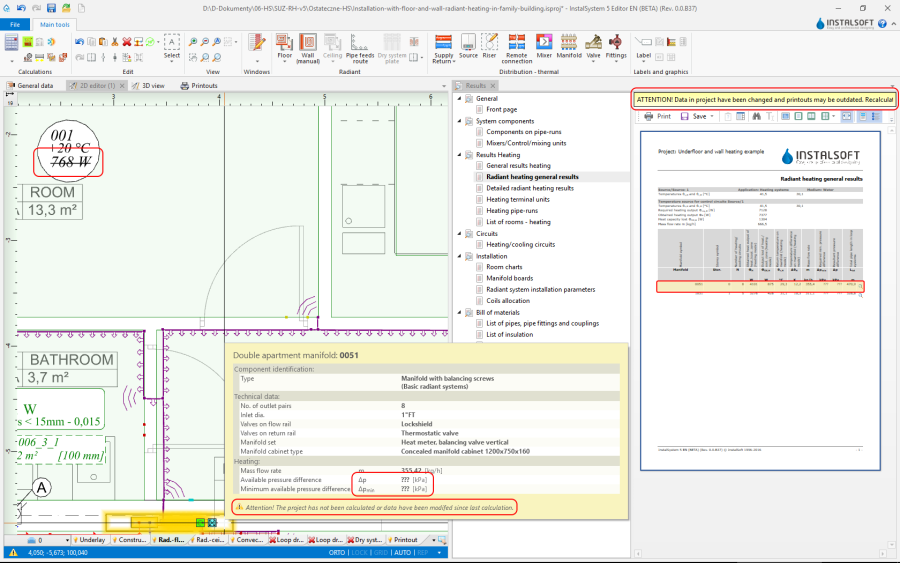
7. Project not calculated


Viewing calculation results as hints
- The program enables convenient viewing of component data and calculation results in the form of hints. To display a hint with component data and results, position the mouse cursor over the component and wait for a moment. For some components, e.g. a radiator with integrated valve or a manifold with a manifold set, hints of differing content can be displayed depending on the place the cursor is positioned. When the cursor is positioned over a junction (point of connection of pipe-runs), the hint contains information on the manner of constructing the junction (selected and sized pipe fittings and accessories) using components available in catalogs.
Viewing calculation results in tables
- Tabular calculation results are presented in a tree structure divided into sections. The number and contents of a section corresponds to the scope(s) of the project and the result sought should be looked for in the appropriate section. Result viewing is facilitated by a number of display control functions: view single pages, view multiple pages, navigate using miniatures. Tables of results can have their headings hidden, and bills of materials can be displayed with additional graphical and descriptive information on the products.
更多信息,见: Using catalogs and catalogs data in the project
Preparing tabular part of calculation results for printing
- It is possible to print:
- a setup (composition) (predefined or user-defined) - from within the 打印输出 module.
- a single table - from within the 结果 module.
The Print operation can be launched for the individual sections in the tree in the calculation results viewing window.
- a setup (composition) (predefined or user-defined) - from within the 打印输出 module.
Preparing graphic part of calculation results for printing
- 插入页面布局.
更多信息,见: Export / print results and drawings - 标签.
- 分集水器设置表.
- 辐射供暖供冷回路.
更多信息,见: Appending drawings with radiant system loops - 盘管辐射构造断面图.
- 图框.
- 标题栏.