查看和打印计算结果:修订间差异
跳转到导航
跳转到搜索
| 第1行: | 第1行: | ||
== | ==说明== | ||
本文以如下表格和图形的形式描述了项目的计算结果: | |||
* 查看和处理诊断消息, | |||
* 查看计算结果提示, | |||
* 查看表中的计算结果, | |||
* 准备要打印的计算结果表格部分, | |||
* 准备要打印的计算结果图形部分。 | |||
==Location in program== | ==Location in program== | ||
===Viewing and handling diagnostic messages=== | ===Viewing and handling diagnostic messages=== | ||
2017年9月30日 (六) 10:49的版本
说明
本文以如下表格和图形的形式描述了项目的计算结果:
- 查看和处理诊断消息,
- 查看计算结果提示,
- 查看表中的计算结果,
- 准备要打印的计算结果表格部分,
- 准备要打印的计算结果图形部分。
Location in program
Viewing and handling diagnostic messages
- Viewing and handling diagnostic messages can be launched from the 诊断 window.
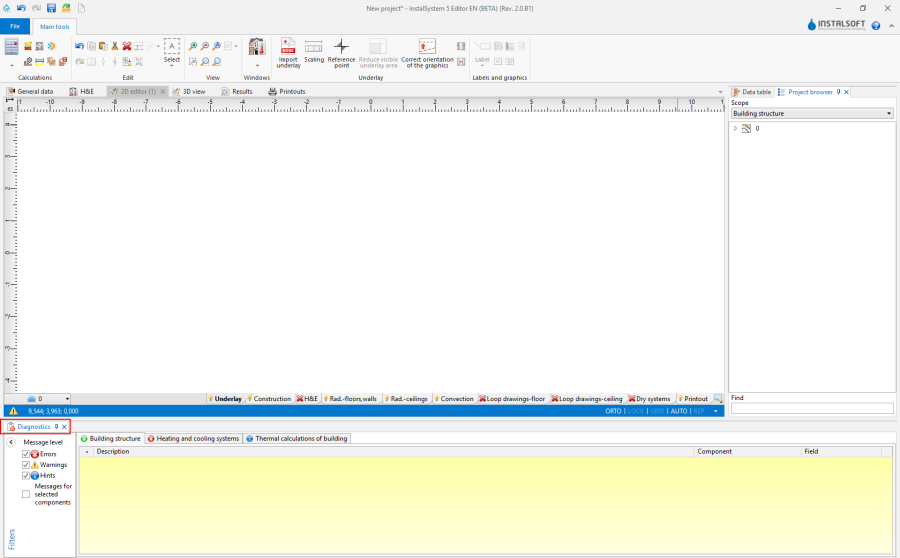
1. 诊断

Viewing calculation results in tables
- Viewing calculation results in tables can be launched from the 结果 window.
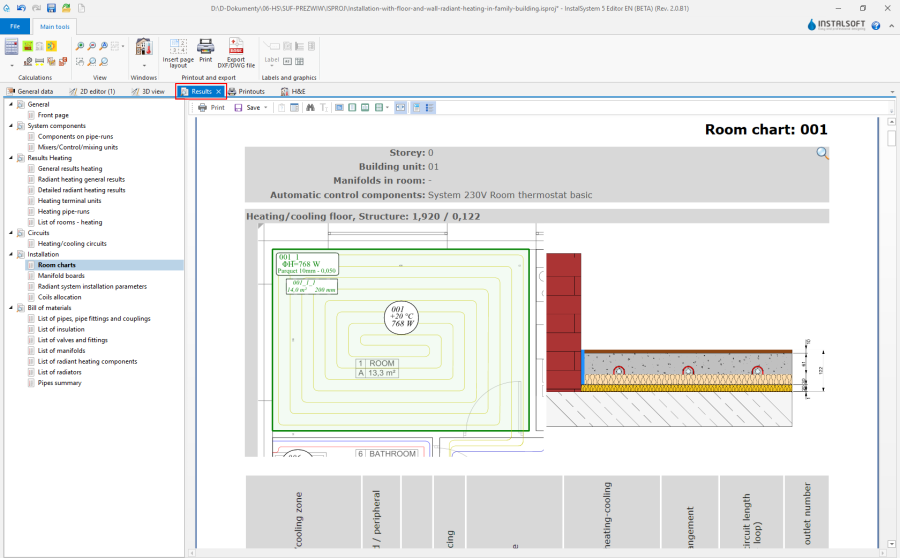
2. 结果

Printing the tabular and graphic parts of the project
- Printing of the tabular and graphic parts of the project can be launched from the 打印输出 window.
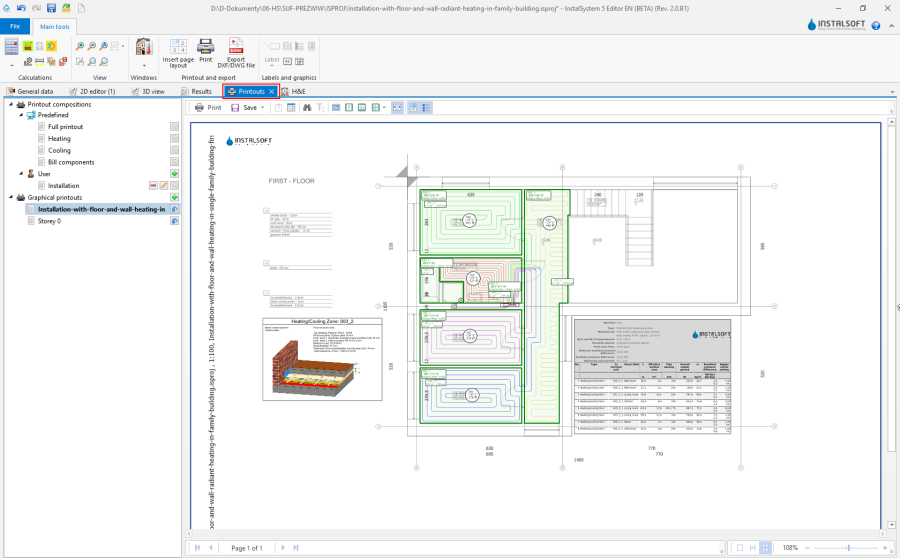
3. 打印输出

Examples of use
Viewing and handling diagnostic messages
- Message levels:
- 错误
 - messages of the highest importance. All errors that occur during project development must be eliminated, otherwise the results may not be complete. There are two types of errors: critical errors, which halt calculations, and errors that do not interrupt calculations, their occurrence, however, may lead to unreliable results.
 - 警告
 - messages of lesser importance than errors. Warnings do not stop calculations or display of results. Warnings are usually associated with data or results that are presumably incorrect and should always be checked.
 - 提示
 - messages that only remind or draw attention to some data or results. Like warnings, hints do not block further calculations or display of results.
- 错误
- Diagnostic window tabs.
These group messages from a selected range of calculations and provide information on the levels of messages that have occurred during calculations of the selected range.
4. Diagnostic window tabs - Message filtering.
Enables turning off complete levels of messages. Very useful for systematizing the handling of diagnostic messages.
- Message grouping for selected components.
This function enables gathering all diagnostic messages that apply to a selected component in the project and eliminating them at once in a single data editing operation.
- Selective marking of components to which a message applies.
Marking of individual components may be effected by left double clicking the message or by selecting from a list of components to which a collective message applies.
- Group marking of components to which a message applies.
Marking of multiple components may be effected by left double clicking the message or by selecting the 标出所有发生错误的部件 function in the menu.
- Extended information on diagnostic messages.
- Diagnostic messages that require wider explanation in order to eliminate them may refer to the extended HelpSystem. It can be accessed by clicking the
 button at the end of the message line.
- Selected diagnostic messages in the 说明 column indicate to which specific fields in the 参数表 or in dedicated editors the diagnosed values apply.
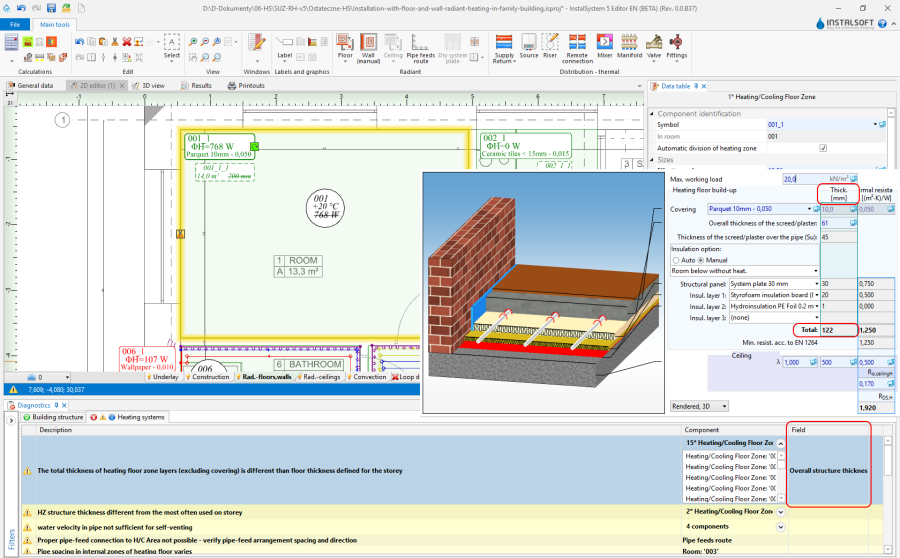
5. Extended information on diagnostic messages
- Diagnostic messages that require wider explanation in order to eliminate them may refer to the extended HelpSystem. It can be accessed by clicking the


Presentation of calculation results of a project that has a Not Calculated status
- The invalid or not calculated status of a project is indicated by a warning symbol displayed on the status bar.

6. Project not calculated - status bar - Invalid or not calculated results are indicated by:
- crossed out values in labels,
- question marks in hints,
- appropriate messages on invalid calculation results:
- 注:本项目尚未计算或数据自上次计算后已更改。
- 注意!项目数据已被更改还未计算更新,打印输出可能过时,请先重新计算。
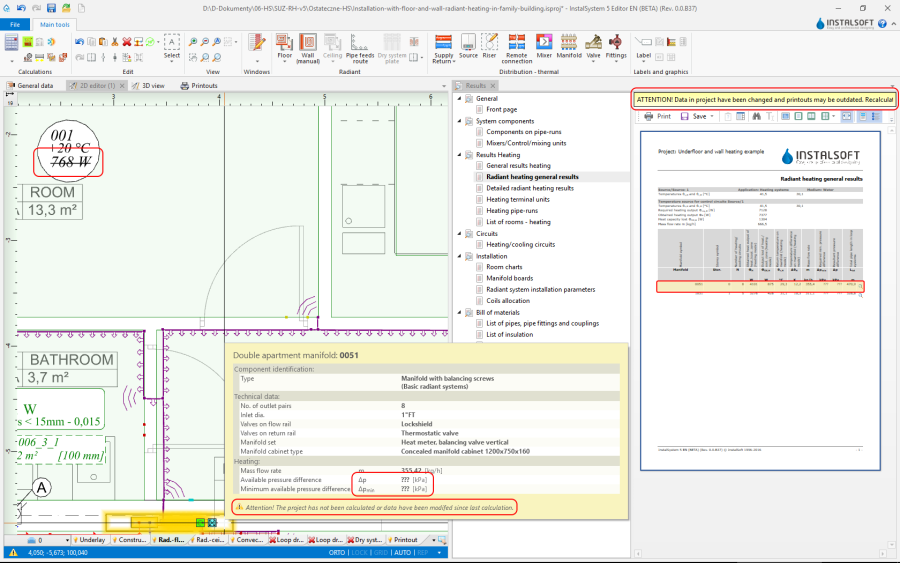
7. Project not calculated


Viewing calculation results as hints
- The program enables convenient viewing of component data and calculation results in the form of hints. To display a hint with component data and results, position the mouse cursor over the component and wait for a moment. For some components, e.g. a radiator with integrated valve or a manifold with a manifold set, hints of differing content can be displayed depending on the place the cursor is positioned. When the cursor is positioned over a junction (point of connection of pipe-runs), the hint contains information on the manner of constructing the junction (selected and sized pipe fittings and accessories) using components available in catalogs.
Viewing calculation results in tables
- Tabular calculation results are presented in a tree structure divided into sections. The number and contents of a section corresponds to the scope(s) of the project and the result sought should be looked for in the appropriate section. Result viewing is facilitated by a number of display control functions: view single pages, view multiple pages, navigate using miniatures. Tables of results can have their headings hidden, and bills of materials can be displayed with additional graphical and descriptive information on the products.
更多信息,见: Using catalogs and catalogs data in the project
Preparing tabular part of calculation results for printing
- It is possible to print:
- a setup (composition) (predefined or user-defined) - from within the 打印输出 module.
- a single table - from within the 结果 module.
The Print operation can be launched for the individual sections in the tree in the calculation results viewing window.
- a setup (composition) (predefined or user-defined) - from within the 打印输出 module.
Preparing graphic part of calculation results for printing
- 插入页面布局.
更多信息,见: Export / print results and drawings - 标签.
- 分集水器设置表.
- 辐射供暖供冷回路.
更多信息,见: Appending drawings with radiant system loops - 盘管辐射构造断面图.
- 图框.
- 标题栏.