建筑结构的准备 - 创建不同建筑的屋顶:修订间差异
跳转到导航
跳转到搜索
(→建筑结构) |
(→建筑结构计算) |
||
| 第13行: | 第13行: | ||
* 在''2D编辑器'' 窗口中,当打开''<IS_TS id=lystrFloors/>'' 编辑范围时,在''<IS_TS id=NarzedziaGlowne/>'' 的''<IS_TS id=lystrFloors/>'' 工具栏中,可见与建筑结构相关的部件和功能图标。<br/>[[File:导入建筑图.png|900 px|left|thumb|3. 建筑结构部件]]<br clear="all"/> | * 在''2D编辑器'' 窗口中,当打开''<IS_TS id=lystrFloors/>'' 编辑范围时,在''<IS_TS id=NarzedziaGlowne/>'' 的''<IS_TS id=lystrFloors/>'' 工具栏中,可见与建筑结构相关的部件和功能图标。<br/>[[File:导入建筑图.png|900 px|left|thumb|3. 建筑结构部件]]<br clear="all"/> | ||
=== | ===计算建筑结构=== | ||
* ''<IS_TS id= | * 在''<IS_TS id=NarzedziaGlowne/>'' 的''<IS_TS id=sObliczenie/>'' 工具栏中可见''<IS_TS id=BuildingStructureCalculation/>''。<br/>[[File:计算建筑结构.png|900 px|left|thumb|4. ''<IS_TS id=BuildingStructureCalculation/>'']]<br clear="all"/> | ||
==Example of use== | ==Example of use== | ||
2017年9月10日 (日) 10:34的版本
描述
本文介绍了如何创建各种屋顶结构。屋顶结构包括:
- 屋顶,
- 添加屋顶边缘,
- 天窗,
- 天窗。
在编辑时为了检查所做的修改的效果,需要调用建筑结构计算 。
更多信息,见: 建筑结构的准备
在程序中的位置
建筑结构
- 在2D编辑器 窗口中,当打开建筑 编辑范围时,在主工具 的建筑 工具栏中,可见与建筑结构相关的部件和功能图标。
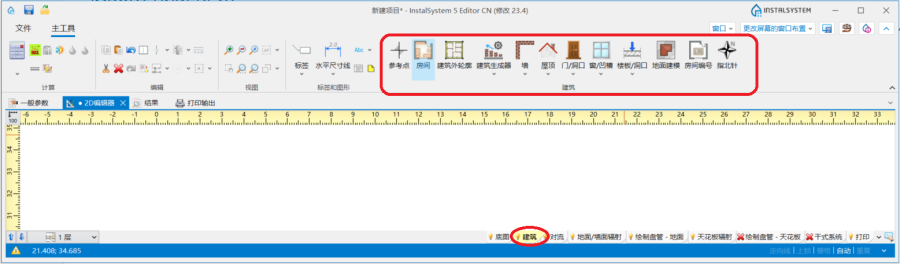
3. 建筑结构部件

计算建筑结构
- 在主工具 的计算 工具栏中可见建筑结构计算。
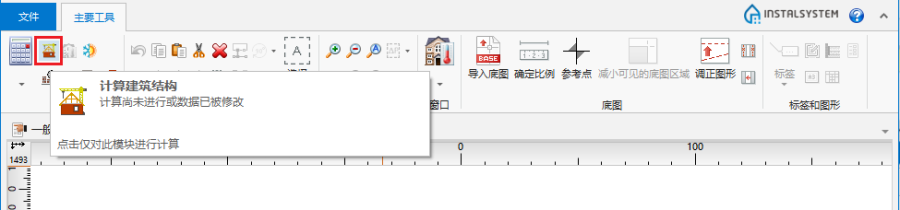
4. 建筑结构计算

Example of use
1. Create an outline of the roof cover using the 屋顶 component. Then draw the edges of the roof using 添加屋顶边缘 and specify the elevations of the characteristic points of the roof.
Roof division lines can be deleted by clicking  .
.
Red roof division lines indicate that the division cannot be effected and the elevations of the points or the division lines need to be adjusted.
- shed roof,
- gable roof,
- hip roof,
- half hip roof,
- gambrel roof,
- multifaceted roof.
2. Create a roof with a dormer using 天窗:
- roof with a shed dormer,
- roof with a gabled dormer.