在项目中查找部件:修订间差异
跳转到导航
跳转到搜索
(→应用举例) |
|||
| 第7行: | 第7行: | ||
==应用举例== | ==应用举例== | ||
===寻找选定类型的部件=== | ===寻找选定类型的部件=== | ||
# | # 选择寻找的''<IS_TS id=StructureType/>'' (如:''<IS_TS id=ScopeKonstrukcjaBudynku/>'' ,''<IS_TS id=strInstalacjaGrzewczaIChlodnicza/>'')。 | ||
# | # 选择部件树中的部件 | ||
# | # 在窗口右侧的其它按钮可: | ||
#* | #* 在用户指定的绘图范围内搜索指定类型的部件, | ||
#* | #* 搜索选定类型的所有部件。<br/><br>{{#ev:youtube|l0_BjQmGUuk|900||||rel=0}} | ||
=== | ===寻找满足定义条件的部件=== | ||
# | # 选择先前定义的一个搜索<br>或 | ||
# | # 选择''<IS_TS id=AddNewSearch/>'' | ||
# | # 在''<IS_TS id=searchName/>'' 中输入部件名称 | ||
# | # 从列表中选择搜索的数据类型。 | ||
# | # 从列表中选择要搜索的数据类型。 | ||
# | # 指定数值来缩小搜索的范围。<br/><br>{{#ev:youtube|qpXd2EFUNoU|900||||rel=0}} | ||
[[it:Ricerca degli elementi nel progetto]] | [[it:Ricerca degli elementi nel progetto]] | ||
2017年2月6日 (一) 10:38的版本
说明
该项目浏览器 工具可查找项目中使用的部件或组件,寻找 工具可设定查找条件去查找项目中使用的部件或组件,所找到的部件将在所有活动窗口,如:2D编辑器 、3D视图 、参数表 、结果 等中被标识出来。
在程序中的位置
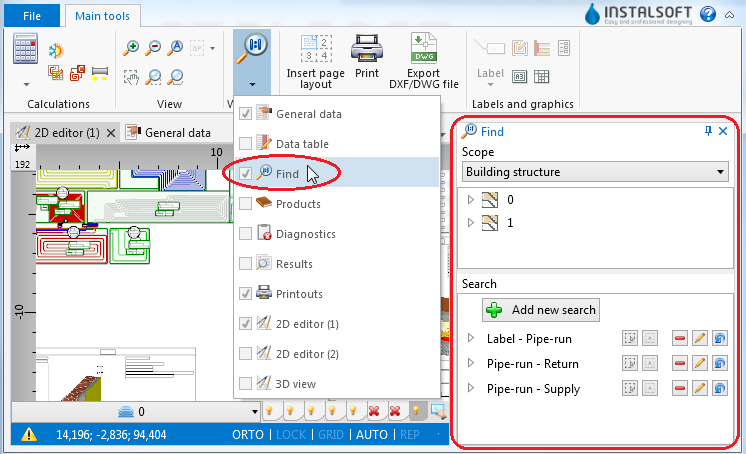
- 项目浏览器 工具和寻找 工具均有一个单独的窗口,位于主工具 的窗口 工具栏内。
1. 功能

应用举例
寻找选定类型的部件
- 选择寻找的范围 (如:建筑结构 ,供热和供冷系统计算)。
- 选择部件树中的部件
- 在窗口右侧的其它按钮可:
- 在用户指定的绘图范围内搜索指定类型的部件,
- 搜索选定类型的所有部件。
寻找满足定义条件的部件
- 选择先前定义的一个搜索
或 - 选择添加新的寻找
- 在寻找名称 中输入部件名称
- 从列表中选择搜索的数据类型。
- 从列表中选择要搜索的数据类型。
- 指定数值来缩小搜索的范围。