选择和编辑多个部件:修订间差异
跳转到导航
跳转到搜索
(→说明) |
|||
| 第19行: | 第19行: | ||
本软件可同时选择和编辑多个部件。 | 本软件可同时选择和编辑多个部件。 | ||
== | ==在程序中的位置== | ||
利用各种软件自带的工具可同时选择多个部件,这些工具是: | |||
# | # 图像编辑器 (''<IS_TS id=GraphicalEdit/>'' 和 ''<IS_TS id=View3D/>'') | ||
#* | #* 一个一个地选择多个部件 | ||
#*:- | #*:- 按住 Ctrl 键,鼠标左键点击每个部件 | ||
#* | #* 从指定的区域中选择多个部件 | ||
#*:- | #*:- 按住鼠标左键,同时拖动鼠标光标以指定选择的区域。 | ||
#*:- | #*:- 在进行''<IS_TS id=btRectSelect/>'' 操作时,accessible: | ||
#*::- in context menu, which is opened by clicking the righ mouse button anywhere in the graphical editor | #*::- in context menu, which is opened by clicking the righ mouse button anywhere in the graphical editor | ||
#*::- on the ''<IS_TS id=NarzedziaGlowne/>'' toolbar, section ''<IS_TS id=ctgstringEdycja/>'', after expanding ''<IS_TS id=rsZaznacz/>'' icon | #*::- on the ''<IS_TS id=NarzedziaGlowne/>'' toolbar, section ''<IS_TS id=ctgstringEdycja/>'', after expanding ''<IS_TS id=rsZaznacz/>'' icon | ||
2018年4月4日 (三) 06:17的版本
| 产品 | InstalSystem 5 |
| 文章类型 | 功能和工具 |
| 版本的最新内容 | IS 5.0 Beta 5.B1 |
说明
本软件可同时选择和编辑多个部件。
在程序中的位置
利用各种软件自带的工具可同时选择多个部件,这些工具是:
- 图像编辑器 (2D编辑器 和 3D视图)
- 一个一个地选择多个部件
- - 按住 Ctrl 键,鼠标左键点击每个部件
- 从指定的区域中选择多个部件
- - 按住鼠标左键,同时拖动鼠标光标以指定选择的区域。
- - 在进行选择矩形框中的部件 操作时,accessible:
- - in context menu, which is opened by clicking the righ mouse button anywhere in the graphical editor
- - on the 主工具 toolbar, section 编辑, after expanding 选择 icon
- Selecting all elements located in the given graphical editor and belonging to the active edditing scopes
- - use the Ctrl+A buttons combination
- - perform a 选择所有 operation, accessible on the 主工具 toolbar, section 编辑, after expanding 选择 icon
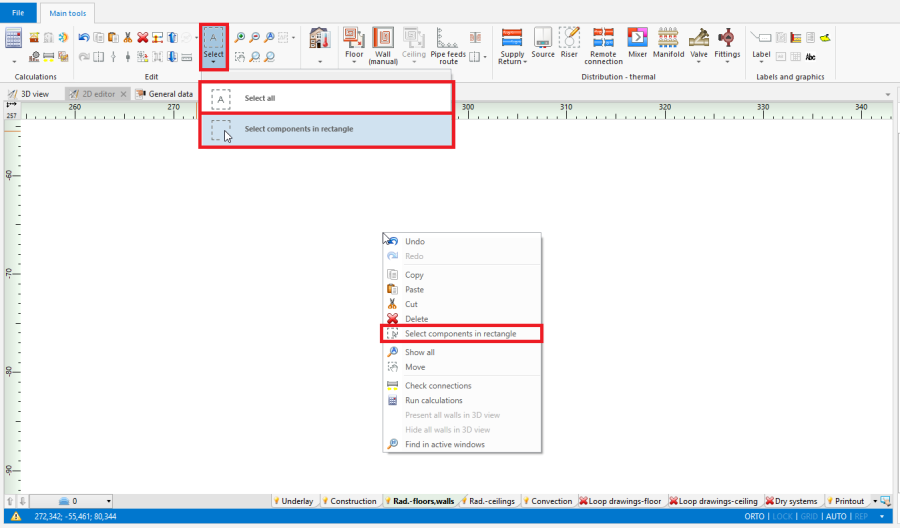
1. 选择矩形框中的部件/选择所有
- 一个一个地选择多个部件
- 项目浏览器 window, by selecting suitable 范围 (eg. 建筑结构, 供热和供冷系统计算), from a drop-down list located at the top of the window
- Selecting only elements of defined type, which belong to a given window section
- - 框选当前楼层中指定类型的部件 button located at the right side of each element type
- - 选择所有 button located at the right side of each element type
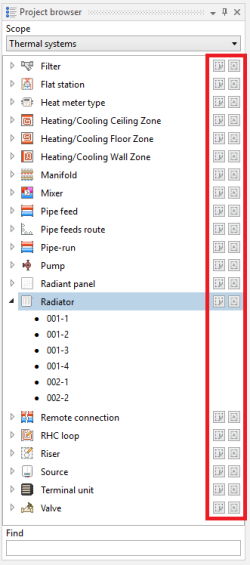
2. Selecting elements of defined type in 项目浏览器 window
- Selecting only elements of defined type, which belong to a given window section
- 寻找 window
- Selecting only elements of defined type, which meet the additional selection criteria (possibilty to define own criteria)
- - 框选当前楼层中指定类型的部件 button located at the right side of each element type
- - 选择所有 button located at the right side of each element type
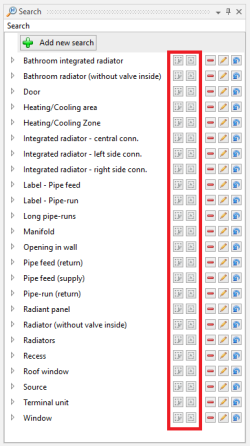
3. Selecting elements meeting additional criteria in "Search" window
- Selecting only elements of defined type, which meet the additional selection criteria (possibilty to define own criteria)
- 诊断 window
- Highlighting all elements, for which a single, grouping diagnostic message was displayed
- - click left mouse button on diagnostic message
- Selecting all elements, for which a single, grouping diagnostic message was displayed
- - double-click left mouse button on diagnostic message
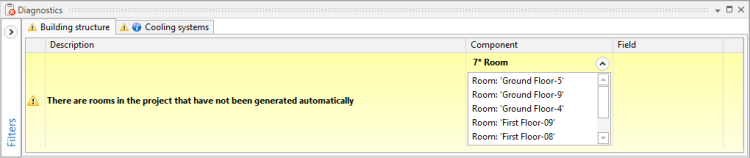
4. Diagnostic message grouping many elements
- - double-click left mouse button on diagnostic message
- Selecting all elements, for which a particular error has occured, in case of repeated diagnostic messages
- - click right mouse button on any of the repeated diagnostic messages and select a 标出所有发生错误的部件 option from a contex manu
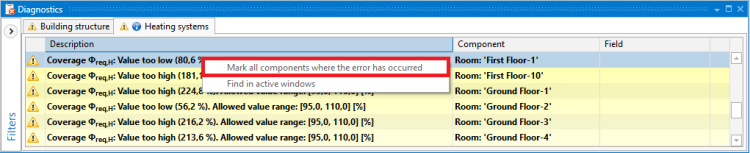
5. 标出所有发生错误的部件 function for repeated diagnostic messages
- - click right mouse button on any of the repeated diagnostic messages and select a 标出所有发生错误的部件 option from a contex manu
- Highlighting all elements, for which a single, grouping diagnostic message was displayed


Example of use
Selecting return pipe-runs from a specified area, through a 寻找 window
Specifying additional selection criteria for pipe-runs and selecting all elements, which meet these criteria
Additional information
- Correction of the selection:
- There is a possibility to deselect individual elements, by holding the Ctrl button and clicking the left mouse button on previously selected element