BIM - 在InstalSystem 5软件包中导入和管理IFC模型
| 产品 | InstalSystem 5 |
| 文章类型 | FUNCTION AND TOOL |
| 版本的最新内容 | 2022-04-11 |
Description
The article describes how to import BIM models to InstalSystem 5 package and how to manage these models in the project.
The software enables to import many models to one project file, which is extremely important when the design process is divided into many stages and objects and particular storeys or parts of the building are contained in separate IFC models. InstalSystem 5 enables importing many IFC files from different building sectors and programmes simultaneously and after loading them into the program, the coordinates from the files are appropriately synchronised. However, particular models are not merged with each other, which means that they can be replaced at any stage of the design.
IFC model management in InstalSystem 5 package is supported by a number of tools, i.e:
- 项目浏览器 window
- 寻找 window
- 参数表 window
- 2D编辑器 and 3D视图.
Full capabilities of the listed tools are presented further on in the article.
Location in the program
- The 导入IFC模型 icon is accessible in the 2D编辑器 window and in the 3D视图 window on the 主工具 bar in the 底图 section for the active 底图 editing scope.
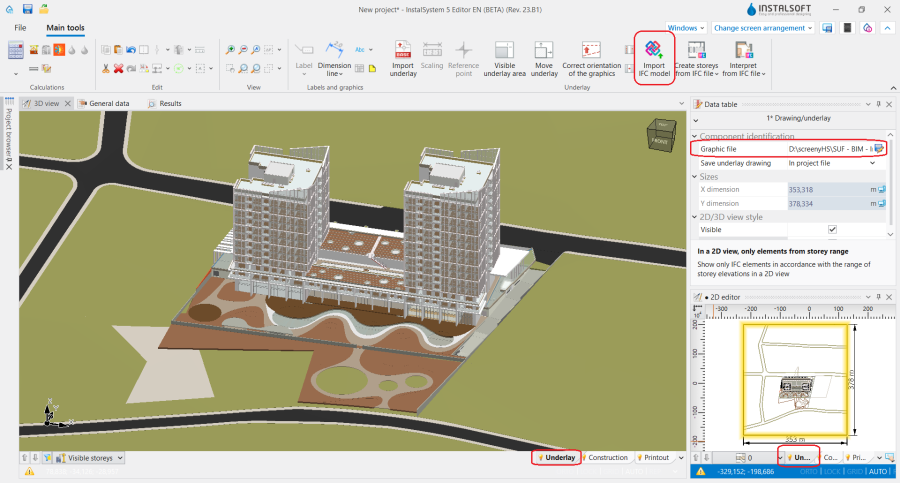
1. 导入IFC模型.

Example of use
Importing an IFC model into the InstalSystem 5 package
- The video shows how to import a building model from an IFC file into a project.
Handling multiple IFC models in a single project file
- All IFC models loaded into the project are displayed in the 项目浏览器 window. All IFC models loaded into the project are displayed in the Project browser window. Irrespective of the number of loaded models the coordinates of the IFC models are synchronised, whereas the files are not merged, which allows for easy replacement of models if a change is made at any stage of the project.
- 将底图保存至项目文件中或总是从外部文件载入. In order to save all imported IFC models to one .isproj file, in the 参数表 window of the selected IFC model, in the 保存底图 field select the 在项目文件中 option. The IFC models saved in the native InstalSystem 5 file are available at any stage of work with the project. When the 在外部文件中 option is selected, the imported models will be saved to an external file.
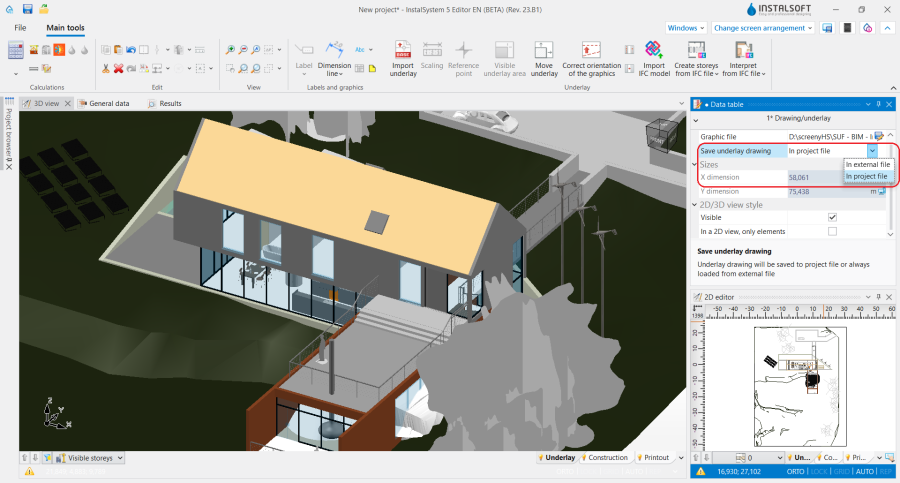
2. 保存底图 IFC.

Viewing and managing an IFC model
- One of the first stages of model assessment is previewing its visualisation in the 2D编辑器 window and in 3D视图. InstalSystem 5 allows full control of the range of objects displayed in the 3D视图 window and in the plan views of the model. This allows for easy and quick analysis of the model, creation of views from any angles and setting the visibility of all model components, depending on preferences and design needs.
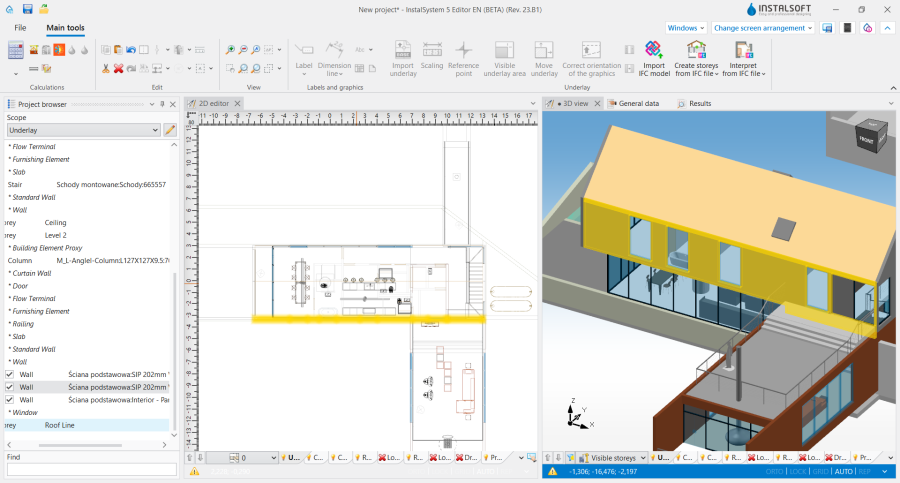
3. Visualization of IFC model in InstalSystem 5 package. - IFC models in 3D视图 can be presented in the original view or in the edge (semi-transparent) mode. To enable the edge view, right-click on the 底图 tab in the active 3D视图 window and select the option: 当未激活时仅边部可见.
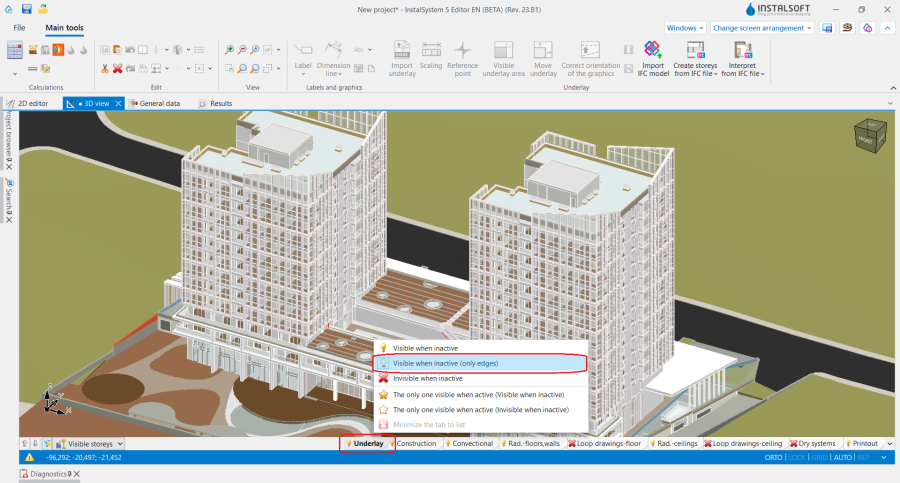
4. IFC model display settings.


Viewing an IFC structure using the project browser
- The 项目浏览器 window provides an overview of the model structure and the way it is defined.
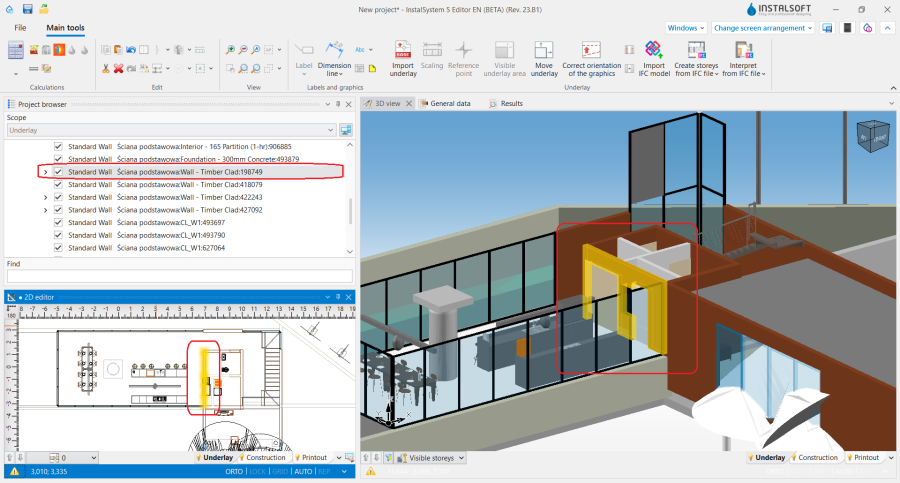
5. 项目浏览器 - model IFC. - 项目浏览器 window allows to check the assignment of components to storeys, it groups components by their type, enables easy searching and marking of objects depending on particular models/storeys/groups/components.
- The view of the loaded IFC model in the 项目浏览器 window can be changed to full or simplified. If IfcSite, IfcProject and IfcBuilding components occur only once in a model, they will not be displayed in the simplified view.
- Each component of the IFC underlay has a dedicated button for controlling its visibility. Components unchecked in the 项目浏览器 window are not displayed in the 2D编辑器 and in 3D视图 and are not subject to subsequent interpretation for the purpose of performing thermal calculations of the building.
- Visibility control buttons are also available for groups of components. Checking or unchecking the visibility of a group affects the visibility of all components assigned to that group.

- The 寻找 window has predefined search criteria for the basic types of IFC structural objects. This enables fast searching for selected components or groups of components, marking them and using them in subsequent design stages. Users can also define their own search criteria. 更多信息,见: Searching for components in a project.
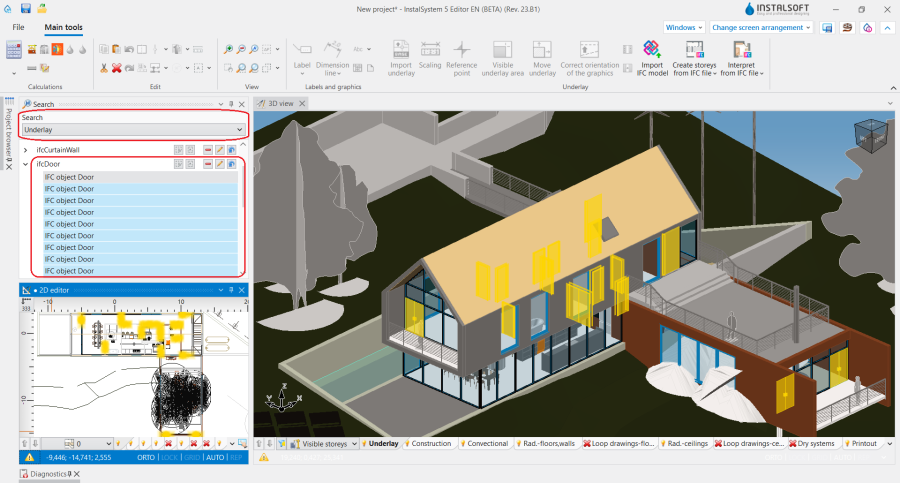
6. 寻找 - model IFC.

Additional information
- The program allows printing the 3D view (e.g. to PDF) and exporting plan views of the IFC model to the latest dwg/dxf formats. 更多信息,见: Export / print results and drawings.
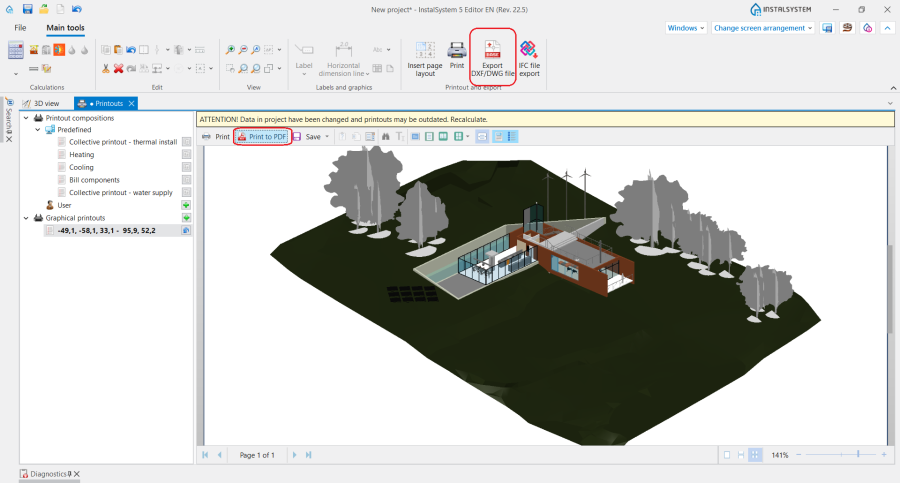
7. IFC model export.
