BIM - 在InstalSystem 5软件包中导入和管理IFC模型:修订间差异
跳转到导航
跳转到搜索
| 第37行: | 第37行: | ||
===在一个项目文件中处理多个IFC模型=== | ===在一个项目文件中处理多个IFC模型=== | ||
*加载到项目中的所有IFC模型都显示在''<IS_TS id=ProjectBrowser/>'' | *加载到项目中的所有IFC模型都显示在''<IS_TS id=ProjectBrowser/>'' 窗口中。无论加载多少了IFC模型,其模型的坐标都是相同的,而文件不会合并,这使得在项目的任何阶段更改模型后,都可以轻松用新的IFC模型替换掉老的IFC模型。</br>{{#ev:youtube|TgIDmwVPVcs|900||||rel=0}} <br clear="all"/> | ||
*''<IS_TS id=Underlay_SaveTypeHint/>''。为了将所有导入的IFC模型保存到一个isproj文件中,可在选定IFC模型的''<IS_TS id=DataEditorTable/>'' 窗口中,在''<IS_TS id=Underlay_SaveTypeCaption/>'' 字段中选择''<IS_TS id=StoreInProjectFile/>'' | *''<IS_TS id=Underlay_SaveTypeHint/>''。为了将所有导入的IFC模型保存到一个isproj文件中,可在选定IFC模型的''<IS_TS id=DataEditorTable/>'' 窗口中,在''<IS_TS id=Underlay_SaveTypeCaption/>'' 字段中选择''<IS_TS id=StoreInProjectFile/>'' 这个选项。保存在'''InstalSystem 5''' 文件中的IFC模型,可在项目的任何工作阶段都可看到或使用它们。如果选择''<IS_TS id=StoreInExternalFile/>'' 选项,则导入的模型将保存到外部文件中。每次打开项目文件,保存在外部文件中的IFC模型,将以链接的形式被载入,如果链接的模型位置发生变化,则无法再载入。</br>[[File:Ifc_saveunderlay.png|900 px|left|thumb|2. <IS_TS id=Underlay_SaveTypeCaption/> IFC.]]<br clear="all"/> | ||
</br>[[File:Ifc_saveunderlay.png|900 px|left|thumb|2. <IS_TS id=Underlay_SaveTypeCaption/> IFC.]]<br clear="all"/> | |||
===Viewing and managing an IFC model=== | ===Viewing and managing an IFC model=== | ||
2022年7月14日 (四) 04:12的版本
| 产品 | InstalSystem 5 |
| 文章类型 | 功能和工具 |
| 版本的最新内容 | 2022-04-11 |
说明
本文介绍了如何将BIM模型导入到InstalSystem 5 软件包中,以及如何在项目中管理这些模型。
软件可以将多个模型导入到一个项目文件中。当设计过程分为多个阶段, 建筑物的特定楼层或部分内容包含在多个不同的IFC模型中时,可导入多个IFC模型这一特点就变得极其重要。
InstalSystem 5 可以同时导入来自不同建筑部门和程序的多个IFC文件。当将其加载到程序中后,不同IFC文件的坐标会适当同步。然而,这些特定的模型并没有相互合并。这意味着它们可以在设计的任何阶段被替换。
在InstalSystem 5 软件包中,可使用如下工具对IFC模型进行管理:
- 项目浏览器 窗口
- 寻找 窗口
- 参数表 窗口
- 2D编辑器 和3D视图
本文进一步介绍了所列工具的全部功能。
网络研讨会
欢饮观看我们网络研讨会上的视频,该视频中也有对本文所述的功能进行讲解和介绍的内容
在程序中的位置
- 导入IFC模型 命令图标可以在2D编辑器 窗口和3D视图 窗口,点击并进入底图 编辑器内,就可在主工具 的工具栏上找到。
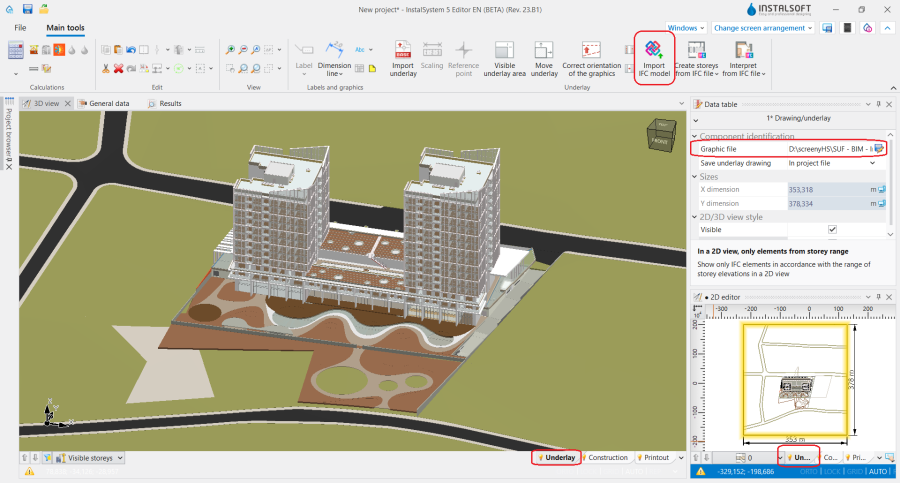
1. 导入IFC模型.

应用举例
将IFC模型导入到InstalSystem 5 软件包中
- 本视频演示了如何将建筑模型从IFC文件导入到项目中
在一个项目文件中处理多个IFC模型
- 加载到项目中的所有IFC模型都显示在项目浏览器 窗口中。无论加载多少了IFC模型,其模型的坐标都是相同的,而文件不会合并,这使得在项目的任何阶段更改模型后,都可以轻松用新的IFC模型替换掉老的IFC模型。
- 将底图保存至项目文件中或总是从外部文件载入。为了将所有导入的IFC模型保存到一个isproj文件中,可在选定IFC模型的参数表 窗口中,在保存底图 字段中选择在项目文件中 这个选项。保存在InstalSystem 5 文件中的IFC模型,可在项目的任何工作阶段都可看到或使用它们。如果选择在外部文件中 选项,则导入的模型将保存到外部文件中。每次打开项目文件,保存在外部文件中的IFC模型,将以链接的形式被载入,如果链接的模型位置发生变化,则无法再载入。
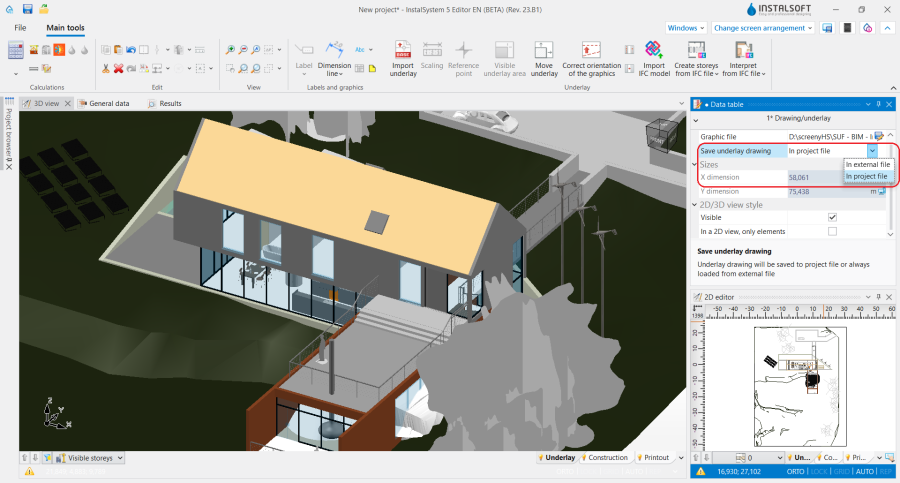
2. 保存底图 IFC.

Viewing and managing an IFC model
- One of the first stages of model assessment is previewing its visualisation in the 2D编辑器 window and in 3D视图. InstalSystem 5 allows full control of the range of objects displayed in the 3D视图 window and in the plan views of the model. This allows for easy and quick analysis of the model, creation of views from any angles and setting the visibility of all model components, depending on preferences and design needs.
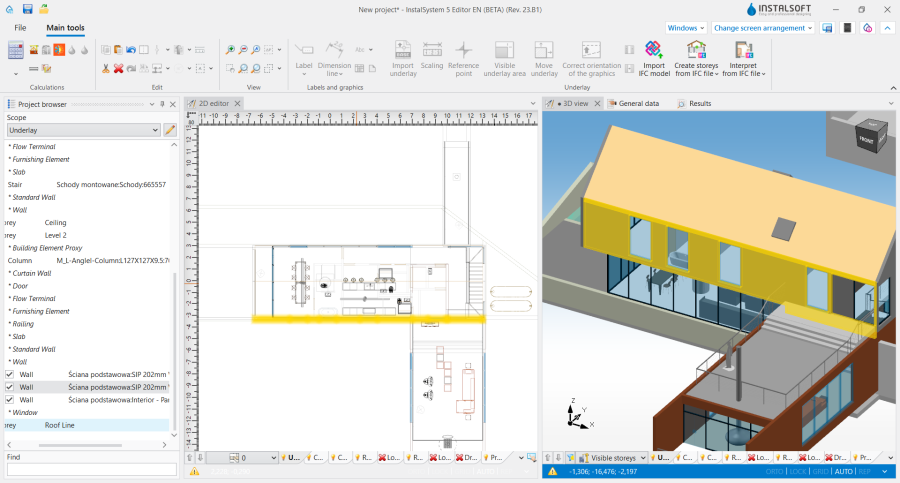
3. Visualization of IFC model in InstalSystem 5 package. - IFC models in 3D视图 can be presented in the original view or in the edge (semi-transparent) mode. To enable the edge view, right-click on the 底图 tab in the active 3D视图 window and select the option: 当未激活时仅边部可见.
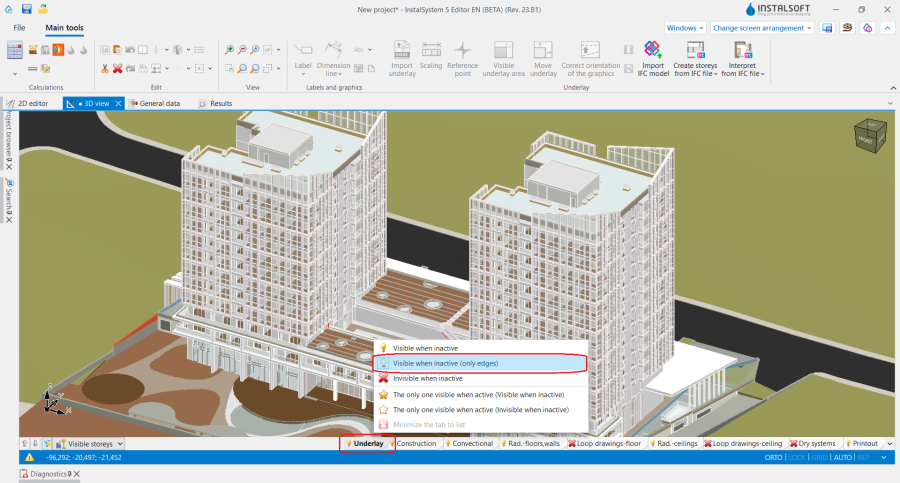
4. IFC model display settings.


Viewing an IFC structure using the project browser
- The 项目浏览器 window provides an overview of the model structure and the way it is defined.
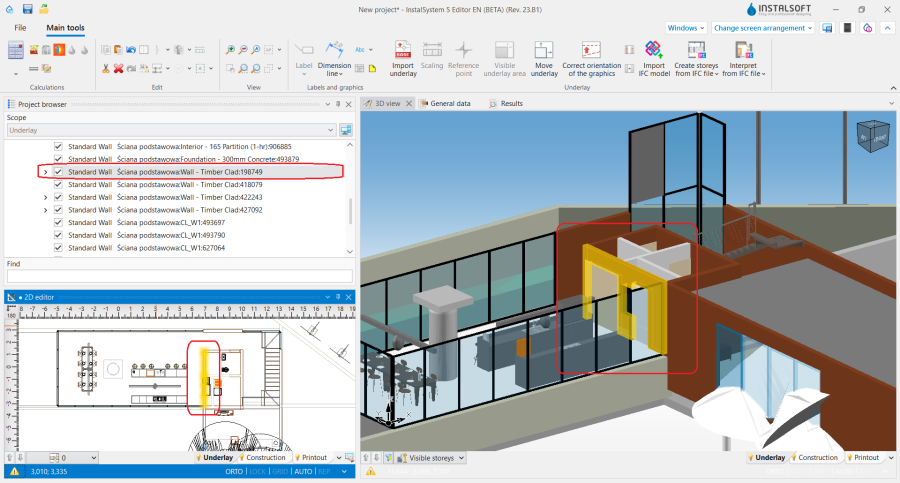
5. 项目浏览器 - model IFC. - 项目浏览器 window allows to check the assignment of components to storeys, it groups components by their type, enables easy searching and marking of objects depending on particular models/storeys/groups/components.
- The view of the loaded IFC model in the 项目浏览器 window can be changed to full or simplified. If IfcSite, IfcProject and IfcBuilding components occur only once in a model, they will not be displayed in the simplified view.
- Each component of the IFC underlay has a dedicated button for controlling its visibility. Components unchecked in the 项目浏览器 window are not displayed in the 2D编辑器 and in 3D视图 and are not subject to subsequent interpretation for the purpose of performing thermal calculations of the building.
- Visibility control buttons are also available for groups of components. Checking or unchecking the visibility of a group affects the visibility of all components assigned to that group.

- The 寻找 window has predefined search criteria for the basic types of IFC structural objects. This enables fast searching for selected components or groups of components, marking them and using them in subsequent design stages. Users can also define their own search criteria. 更多信息,见: Searching for components in a project.
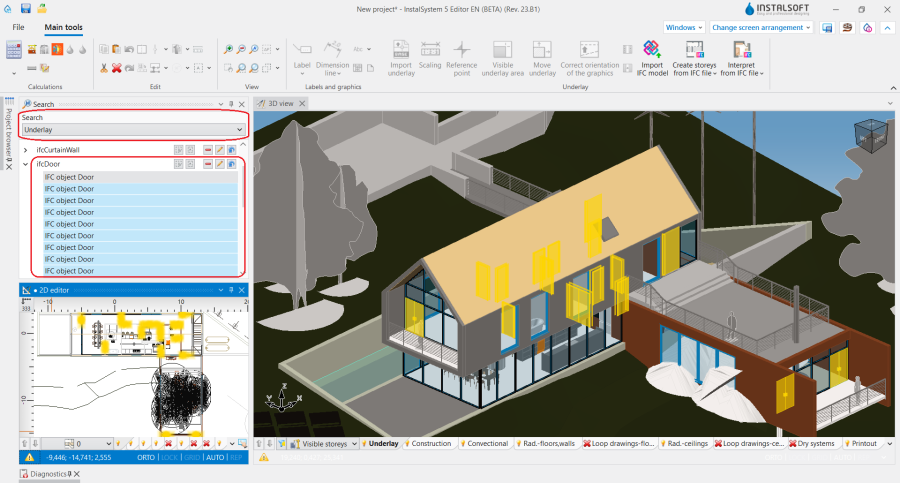
6. 寻找 - model IFC.

Additional information
- The program allows printing the 3D view (e.g. to PDF) and exporting plan views of the IFC model to the latest dwg/dxf formats. 更多信息,见: Export / print results and drawings.
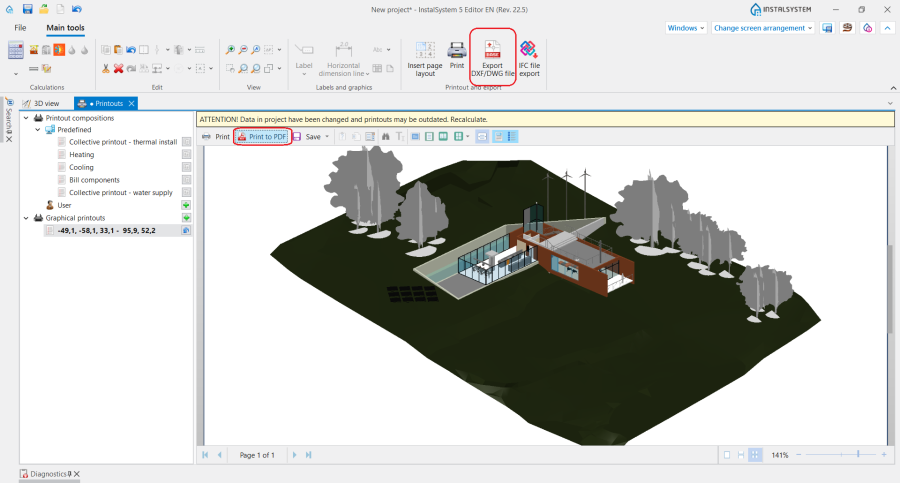
7. IFC model export.
