如何打印出高质量的PDF文件:修订间差异
跳转到导航
跳转到搜索
(→问题描述) |
|||
| 第19行: | 第19行: | ||
将图形打印输出保存到PDF文件中时,使用内置工具生成的PDF文件,在某些情况下可能导致输出的PDF文件质量差 - 图形元素的分辨率比其原始分辨率低。 | 将图形打印输出保存到PDF文件中时,使用内置工具生成的PDF文件,在某些情况下可能导致输出的PDF文件质量差 - 图形元素的分辨率比其原始分辨率低。 | ||
== | ==解决方案== | ||
使用操作系统中预先安装的专门用于生成PDF格式文件的工具之一,如:“Microsoft打印到PDF”,就可获得高质量PDF格式图形的文件的打印输出。 | |||
为此,请按如下步骤进行操作: | |||
High quality of graphical printouts in PDF format, can be achieved by using one of the tools, which are preinstalled in operating systems e.q. ''Microsoft print to PDF''. These tools are meant to generate files in PDF format. | High quality of graphical printouts in PDF format, can be achieved by using one of the tools, which are preinstalled in operating systems e.q. ''Microsoft print to PDF''. These tools are meant to generate files in PDF format. | ||
In order to do this, please follow the given procedure: | In order to do this, please follow the given procedure: | ||
2019年8月1日 (四) 06:52的版本
| 产品 | InstalSystem 5 |
| 文章类型 | TYPICAL PROBLEM |
| 版本的最新内容 | GOLD Rev. 7.3 |
问题描述
将图形打印输出保存到PDF文件中时,使用内置工具生成的PDF文件,在某些情况下可能导致输出的PDF文件质量差 - 图形元素的分辨率比其原始分辨率低。
解决方案
使用操作系统中预先安装的专门用于生成PDF格式文件的工具之一,如:“Microsoft打印到PDF”,就可获得高质量PDF格式图形的文件的打印输出。
为此,请按如下步骤进行操作:
High quality of graphical printouts in PDF format, can be achieved by using one of the tools, which are preinstalled in operating systems e.q. Microsoft print to PDF. These tools are meant to generate files in PDF format. In order to do this, please follow the given procedure:
- Go to 打印输出 window and from the list located on the left side of the screen select one of the graphical printouts to be saved.
- Select Print from the options available for the selected printout.
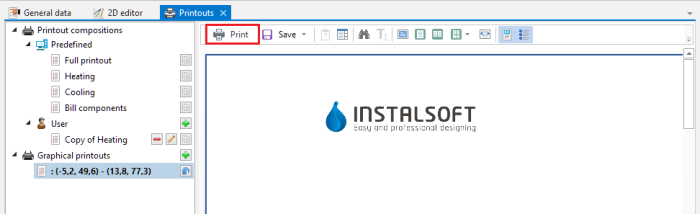
1. Print - Printing window should be displayed. On the list of printers select a position, which is responsible for generating PDF files, e.g. Microsoft print to PDF. In order to confirm, click on Print button.
- In the last step, enter the name of the PDF file, which is being created and confirm by selecting Save.
