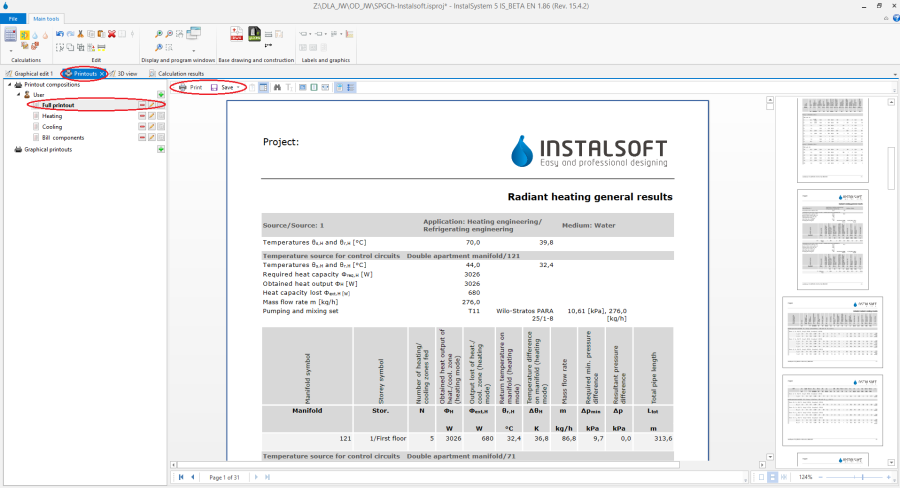
#'''打印表格和清单''' - to print or export it is necessary to open the ''Printouts'' window. The tree displayed on the left side shows the available predefined printout compositions. The number and types of predefined proposals depend on the software version used. A composition can be selected and its content viewed. Then it is only necessary to select ''Print'' to obtain a printout or ''Save'' and, after selecting the target file format, export the results to this format. It is also possible to create and save user-defined printout compositions. These compositions, in addition to the predefined compositions, are then also available in other projects.<br/>[[File:Printouts.png|900 px|left|thumb|30. Print tables and lists]]<br clear="all"/>
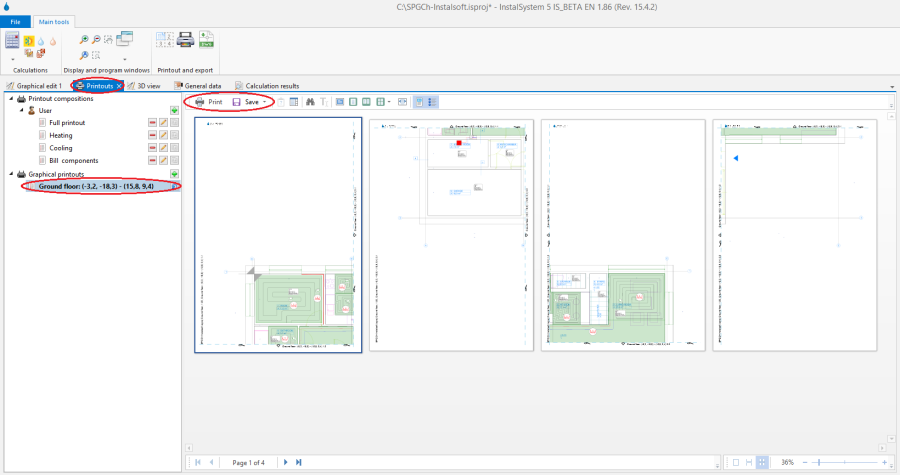
# '''Print drawings''' - drawings are also printed and exported using the ''Printouts'' window. The tree displayed on the left side, below the table printout compositions, shows the graphical printouts defined for the project. The user can define many different layouts of graphical printout. For the defined layout, printing can be effected a number of times, e.g. after every project modification. The range of pages, its setup, style and other parameters are saved. This enables defining various printouts, e.g. one for exporting to a PDF file, another for sending to a printer, yet another for sending to a plotter. <br/>[[File:Graphical printouts.png|900 px|left|thumb|31. Print drawings]]<br clear="all"/>To set up a graphical printout layout it is necessary to:
# '''Print drawings''' - drawings are also printed and exported using the ''Printouts'' window. The tree displayed on the left side, below the table printout compositions, shows the graphical printouts defined for the project. The user can define many different layouts of graphical printout. For the defined layout, printing can be effected a number of times, e.g. after every project modification. The range of pages, its setup, style and other parameters are saved. This enables defining various printouts, e.g. one for exporting to a PDF file, another for sending to a printer, yet another for sending to a plotter. <br/>[[File:Graphical printouts.png|900 px|left|thumb|31. Print drawings]]<br clear="all"/>To set up a graphical printout layout it is necessary to:
#* Select ''Printouts'' tab in the ''Graphical editor'' window
#* Select ''Printouts'' tab in the ''Graphical editor'' window
Print drawings - drawings are also printed and exported using the Printouts window. The tree displayed on the left side, below the table printout compositions, shows the graphical printouts defined for the project. The user can define many different layouts of graphical printout. For the defined layout, printing can be effected a number of times, e.g. after every project modification. The range of pages, its setup, style and other parameters are saved. This enables defining various printouts, e.g. one for exporting to a PDF file, another for sending to a printer, yet another for sending to a plotter. 31. Print drawings To set up a graphical printout layout it is necessary to:
Select Printouts tab in the Graphical editor window
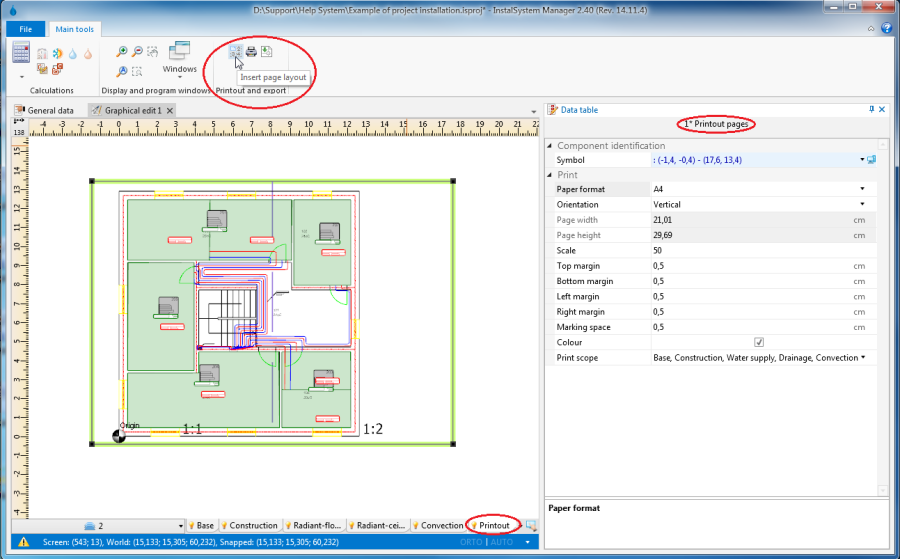
At Insetr page layout tool is available in the Printout and export section of the toolbar. This tool enables placing a Printout pages component in the drawing. To each Printout pages component placed in the drawing corresponds a separate graphical printout item in the Printouts window
The Printout pages component can be configured in the data table - a name should be assigned to it, its size, page layout and other style components can be modified
In the graphical edit area the outline of this component can be dragged by the mouse to an appropriate location in the project drawing. Its size can also be changed by dragging one of the corners, whereas the size is always a multiple of full pages. This way the area of the project to be printed can be marked. 32. Printout configuration



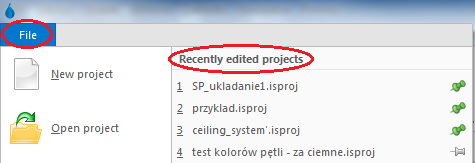
 ,它就会移到清单的顶部并将永久在那个位置
  。
。









 , 就可执行导入的功能了。 在指定了要导入的文件之后,软件就会自动进行处理。当导入gbXML文件时,各楼层的建筑结构以及每一楼层平面图的建筑部件就全部导入了。
 这一命令,给每层图纸标出上下对齐的参考点。 然后打开建筑 标签,按下面手动编辑建筑结构 的描述,给建筑结构放上所需要的部件。在此,导入的底图构成了绘制建筑图的背景,它可加快完成建筑图的编辑。


 - 最重要的信息,以大写字母显示。致命错误会导致停止计算,必须先去除。还有一些不会导致停止计算的错误,但也必须密切分析和纠正它们。
 - 比错误的严重性低一级的信息,以小写字母显示。它们不会阻碍进一步的计算。警告通常当参数或结果有可能不正确时出现。因此,建议始终关注所显示的警告
 - 提醒或提请注意一些数据或结果的消息。