部件外观和标签的设置:修订间差异
(→选项卡) |
(→选项卡) |
||
| 第32行: | 第32行: | ||
该''<IS_TS id=strLblWygladCaption/>'' 选项卡提供了可插入到图形编辑器中的所有部件的列表,允许选择部件,编辑它们在''<IS_TS id=GraphicalEdit/>'' 和在''<IS_TS id=View3D/>'' 中的外观。对于大多数部件,将显示两个窗口 - 一个定义部件的外观样式,另一个定义该部件标签的样式。但样式编辑和标签插入不适用于所有的部件。</br>[[File:Component styles.png |900 px|left|thumb|2. <IS_TS id=strLblWygladCaption/>]]<br clear="all"/> | 该''<IS_TS id=strLblWygladCaption/>'' 选项卡提供了可插入到图形编辑器中的所有部件的列表,允许选择部件,编辑它们在''<IS_TS id=GraphicalEdit/>'' 和在''<IS_TS id=View3D/>'' 中的外观。对于大多数部件,将显示两个窗口 - 一个定义部件的外观样式,另一个定义该部件标签的样式。但样式编辑和标签插入不适用于所有的部件。</br>[[File:Component styles.png |900 px|left|thumb|2. <IS_TS id=strLblWygladCaption/>]]<br clear="all"/> | ||
在现有样式的范围内,可以: | |||
* | *修改: | ||
** | **线条的类型、颜色和厚度, | ||
** | **填充颜色和透明度, | ||
** | **3D颜色和3D透明度; | ||
* | *更改名称; | ||
* | *创建新样式的零部件; | ||
* | *复制 | ||
* | *删去 | ||
* | *在样式列表中重新定位; | ||
*<IS_TS id=RestoreDefaults/> | *<IS_TS id=RestoreDefaults/> 程序设置: | ||
** | **全局地针对所有组件或针对所选组件, | ||
** | **分别显示组件外观和标签外观; | ||
*将配置的样式保存为模板文件有关更多信息,请参阅:软件配置; | |||
*从模板加载默认设置: | |||
*全局-所有组件的标签和样式, | |||
*对于选定的组件:分别显示组件外观和标签外观。 | |||
<br/> | |||
*save the configured styles as a template file {{Info}} [[Software configuration]];<br/> | *save the configured styles as a template file {{Info}} [[Software configuration]];<br/> | ||
*load the default settings from a template: | *load the default settings from a template: | ||
2023年1月15日 (日) 07:58的版本
| 产品 | InstalSystem 5 |
| 文章类型 | FUNCTION AND TOOL |
| 版本的最新内容 | 2022-12-01 |
说明
部件外观和说明配置 部分中包含的功能允许为每个项目单独设置部件的外观(例如颜色或比例选择)和一些编辑参数。这样可以使图形的外观和工作流更好地适应正在进行的项目的特殊要求。
在程序中的位置
本功能在一般参数 窗口,部件外观和说明配置 选项卡。

应用举例
部件类型选项卡
该部件类型 选项卡提供了可插入到图形编辑器中的所有部件的列表,允许选择部件,编辑它们在2D编辑器 和在3D视图 中的外观。对于大多数部件,将显示两个窗口 - 一个定义部件的外观样式,另一个定义该部件标签的样式。但样式编辑和标签插入不适用于所有的部件。

在现有样式的范围内,可以:
- 修改:
- 线条的类型、颜色和厚度,
- 填充颜色和透明度,
- 3D颜色和3D透明度;
- 更改名称;
- 创建新样式的零部件;
- 复制
- 删去
- 在样式列表中重新定位;
- 恢复至当前模板中默认的样式 程序设置:
- 全局地针对所有组件或针对所选组件,
- 分别显示组件外观和标签外观;
- 将配置的样式保存为模板文件有关更多信息,请参阅:软件配置;
- 从模板加载默认设置:
- 全局-所有组件的标签和样式,
- 对于选定的组件:分别显示组件外观和标签外观。
- save the configured styles as a template file 更多信息,见: Software configuration;
- load the default settings from a template:
- globally - labels and styles for all components,
- for a selected component: separately the component appearance and the label appearance.
Label editing
For labels, in addition to the basic style modification features, there is an 编辑标签 window which enables:
- specifying the shape of the label;
- specifying the default label position;
- text formatting;
- displaying/concealing the line connecting the label with the component and configuring the style of that line.
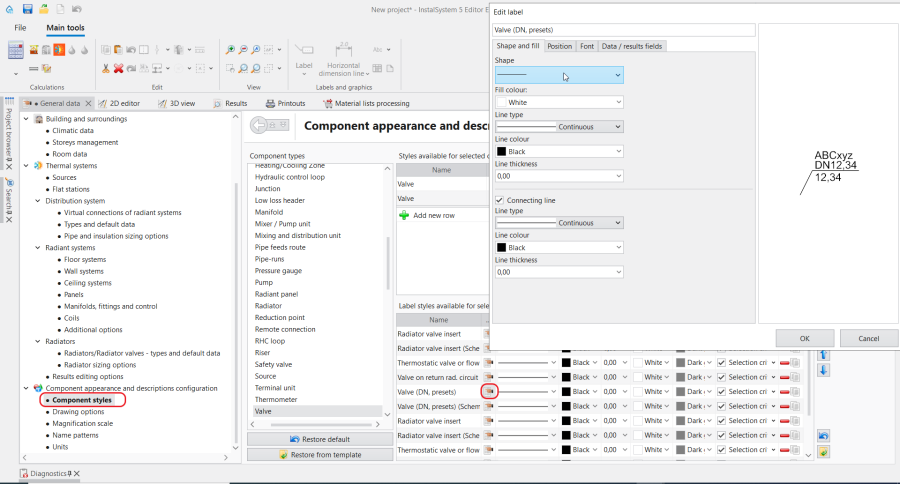
3. 编辑标签

Style selection criterion
A style may have an automatic style selection criterion enabled, which upon configuring will automatically assign a style to a component identified by the criterion. If a component has more than one style that can be assigned to it based on the criterions, then the style automatically assigned is the first that meets the criteria in the styles list.
Selecting a style in the data table
The appearance of a component and its label can be edited in the Data Table by specifying a style individually or collectively, by selecting it from among the styles predefined in 部件类型:
- upon selecting the component in the plan view or 3D view in the 2D/3D视图样式 and 标签 sections:

4. 参数表-2D/3D视图样式 - upon selecting the component in the schematic view in the 视图风格 (示意图) and 标签(示意图) sections:
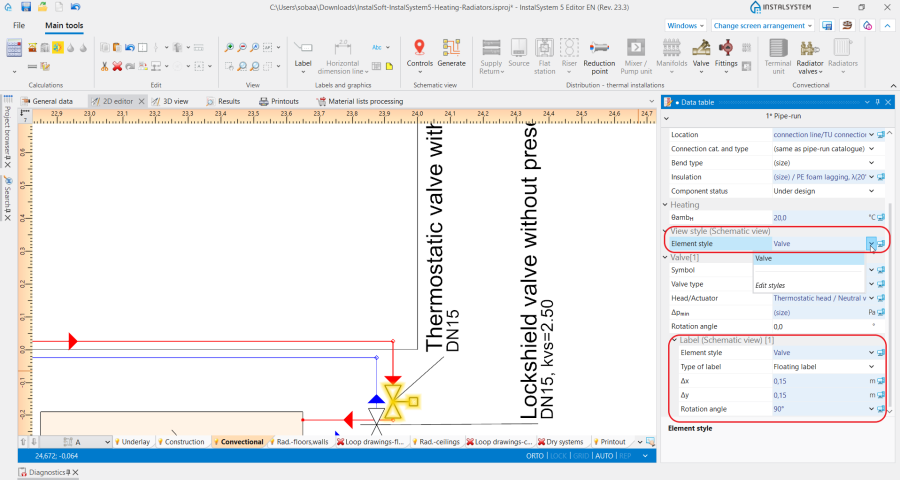
5. 参数表-标签(示意图)


出图选项 tab
Depending on the selected project scope, the tab enables:
- selecting a drawing standard from the list of standards;
- checking/unchecking additional options pertaining to the design drawing appearance and printout.
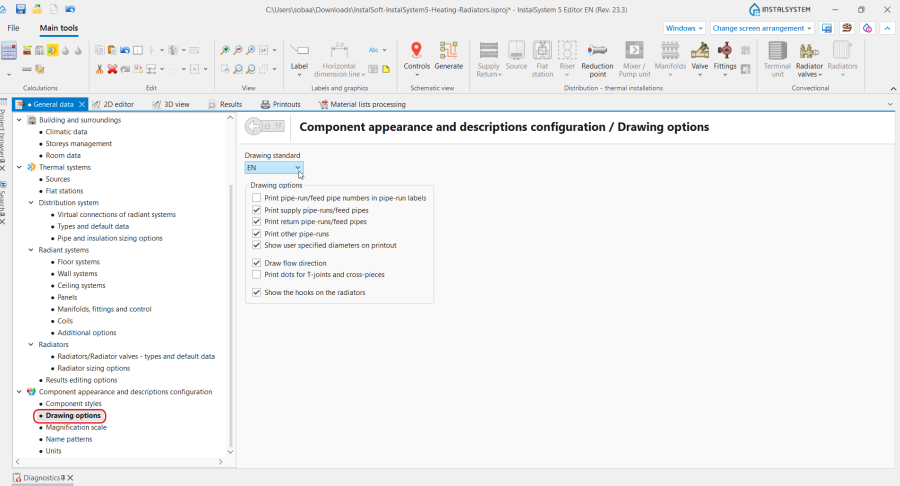
6. 出图选项

缩放比例 tab
This tab enables modifying the reference scale, changing the fittings drawing size and taking into account the diameter of the connections for each type of sheet separately.

名称样式 tab
This tab enables editing of the name patterns automatically assigned to selected components in the project.
The names are assigned automatically when the field in the 参数表 window of selected components includes the fields 符号, 名称 or other identifying field, in the  state.
Instructions for the name pattern defining is accessible upon clicking the
state.
Instructions for the name pattern defining is accessible upon clicking the  icon in each row.
The rows displayed depend on the settings made in the 项目范围 tab.

单位 tab
This tab, depending on the selected project scope, enables selecting:
- the set of symbols of selected quantities in thermal calculations;
- the unit shown for selected quantities in water supply systems.
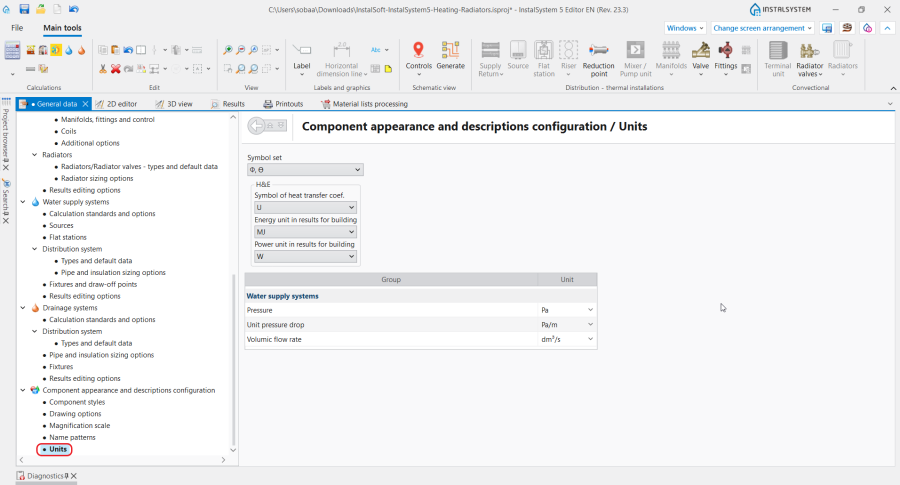
9. 单位

Additional information
Components with additional appearance editing features
- 房间 -地面变暗 ,吊顶变暗
- 门/窗等墙上部件 - 玻璃窗玻璃颜色和透明度的设置
- 盘卷配置 - 不同的回路颜色 ,引线管使用与盘管相同的颜色