如何打印出高质量的PDF文件:修订间差异
跳转到导航
跳转到搜索
(创建页面,内容为“{{Article table |commercial_product1=InstalSystem 5 |p2 = |p3 = |p4 = |category1 =InstalSystem 5#Typowe prob...”) |
无编辑摘要 |
||
| 第16行: | 第16行: | ||
}} | }} | ||
== | ==问题描述== | ||
Saving a graphical printout to a PDF file, using a built-in tool for generating PDF files, in some cases can result in poor quality of output PDF files - graphic elements will have worse resolution compared to their original resolution. | Saving a graphical printout to a PDF file, using a built-in tool for generating PDF files, in some cases can result in poor quality of output PDF files - graphic elements will have worse resolution compared to their original resolution. | ||
2019年8月1日 (四) 06:44的版本
| 产品 | InstalSystem 5 |
| 文章类型 | TYPICAL PROBLEM |
| 版本的最新内容 | GOLD Rev. 7.3 |
问题描述
Saving a graphical printout to a PDF file, using a built-in tool for generating PDF files, in some cases can result in poor quality of output PDF files - graphic elements will have worse resolution compared to their original resolution.
Solution
High quality of graphical printouts in PDF format, can be achieved by using one of the tools, which are preinstalled in operating systems e.q. Microsoft print to PDF. These tools are meant to generate files in PDF format. In order to do this, please follow the given procedure:
- Go to 打印输出 window and from the list located on the left side of the screen select one of the graphical printouts to be saved.
- Select Print from the options available for the selected printout.
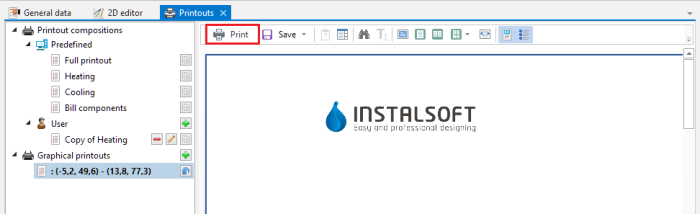
1. Print - Printing window should be displayed. On the list of printers select a position, which is responsible for generating PDF files, e.g. Microsoft print to PDF. In order to confirm, click on Print button.
- In the last step, enter the name of the PDF file, which is being created and confirm by selecting Save.
