在仅有集成图形显卡的计算机上使用软件时的问题:修订间差异
(创建页面,内容为“<IS_AUTOPAGE/> <IS_HELP id="HS22"/> <IS_HELP id=HS22/> {{Article table |commercial_product1=InstalSystem 5 |p2 = |p3 = |p4...”) |
(创建页面,内容为“<IS_AUTOPAGE/> <IS_HELP id="HS22"/> <IS_HELP id=HS22/> {{Article table |commercial_product1=InstalSystem 5 |p2 = |p3 = |p4...”) |
||
| 第7行: | 第7行: | ||
|p3 = | |p3 = | ||
|p4 = | |p4 = | ||
|category1 =InstalSystem 5# | |category1 =InstalSystem 5#Typical problems | ||
|category_name1 = | |category_name1 =TYPICAL PROBLEMS | ||
|c2 = | |c2 = | ||
|category_name2 = | |category_name2 = | ||
|c3 = | |c3 = | ||
|category_name3 = | |category_name3 = | ||
|version1 =[[Release notes InstalSystem 5# | |version1 =[[Release notes InstalSystem 5#Wersja GOLD Rev. 12.0|GOLD Rev. 12.0]] | ||
|v2 = | |v2 = | ||
|v3 = | |v3 = | ||
| 第19行: | 第19行: | ||
}} | }} | ||
== | ==Problem description== | ||
Users working with '''InstalSystem 5''' software on computers with one available or set as default integrated graphics card could encounter with problems related with general efficiency with program’s stability and with reduced work ergonomy. | |||
* | <br/> The most common symptoms of this type of problems are: | ||
* | * Application suspension/turn off in the moment of switch the ''<IS_TS id=View3D/>'', | ||
* Black screen appearance in the ''<IS_TS id=View3D/>'' or ''<IS_TS id=rpEdytor2D/>''. | |||
== | Actual hardware requirements are placed in the article [[Technical specifications of InstalSystem 5 package]]. | ||
''' | |||
==Solution== | |||
''' Regular graphic card driver update is recommended, despite the solution given below.''' | |||
<br/> | <br/> | ||
<br/> | <br/> | ||
=== | ===Computers equipped with the integrated and not integrated graphics card=== | ||
To find out which graphic cards are installed in the computer, please use the information described in ''<IS_TS id=btUstawienia/>'': | |||
# | # Start the program, choose tab ''<IS_TS id=rsFile/>'' placed in the top left corner, then please choose the ''<IS_TS id=btUstawienia/>''. | ||
# | # On the screened setting window, please choose ''<IS_TS id=btUstawieniaWygladEkranu/>''.<br>[[File:HS-TP-Graphic-cards.png|700 px|left|thumb|1. ''<IS_TS id=AvailableGraphicsCards/>'']]<br clear="all"/> | ||
==== | ====Global inclusion of not integrated graphic card==== | ||
This way turns off the auto-managing mechanism of the group installed graphic cards, could influence the set in Windows system energy management schemes and reduce the work time in laptop’s batteries. | |||
* | * Example of changes in nVidia graphic card driver.<br>[[File:TP-graphic-card-global.png|700 px|left|thumb|2. Global inclusion of not integrated graphic card]]<br clear="all"/> | ||
====Inclusion of not integrated graphic card, only for '''InstalSystem 5''' usage==== | |||
This way turns off the auto-managing mechanism of the group installed graphic cards, could influence the set in Windows system energy management schemes and reduce the work time in laptop’s batteries.<br> | |||
NOTE: | |||
'''This way must be set every time for installed program version and for each new installed InstalSystem 5 version.'''<br> | |||
* Example of changes in nVidia graphic card driver.<br>[[File:TP-graphic-card-local.png|700 px|left|thumb|3. Turn on the not integrated graphic card only for the '''InstalSystem 5''' version usage]]<br clear="all"/> | |||
==== | ===Computers equipted only with integrated graphic card=== | ||
=== | ====Way out for suspition/turning off application - turning on checkbox ''<IS_TS id=disableAdvancedHardwareAcceleration/>''==== | ||
# Start the program, choose tab ''<IS_TS id=rsFile/>'' placed in the top left corner, then please choose the ''<IS_TS id=btUstawienia/>''. | |||
# On the screened setting window, please choose ''<IS_TS id=btUstawieniaWygladEkranu/>'', | |||
# | # Choose ''<IS_TS id=disableAdvancedHardwareAcceleration/>'' and confirm your changes by pressing ''<IS_TS id=rsBtnOK/>''. <br>[[File:TP-Graphic-cards-settings.png|700 px|left|thumb|4. Turn on ''<IS_TS id=disableAdvancedHardwareAcceleration/>'']]<br clear="all"/> | ||
# | '''Restarting the InstalSystem 5 Edytor is required''.''' | ||
# | |||
''' | |||
<br> | <br> | ||
<br> | <br> | ||
====Way out for black screen in ''<IS_TS id=View3D/>'' or ''<IS_TS id=rpEdytor2D/>'' - Turning off the option ''Antialiasing''==== | |||
====''<IS_TS id=View3D/>'' | # Start the program, choose tab ''<IS_TS id=rsFile/>'' placed in the top left corner, then please choose the ''<IS_TS id=btUstawienia/>''. | ||
# | # On the screened setting window, please choose ''<IS_TS id=btUstawieniaWygladEkranu/>'', | ||
# | # Turn off the option ''Antialiasing'' ''<IS_TS id=strAntialiasingFor2D/>'', ''Antialiasing'' ''<IS_TS id=strAntialiasingFor3D/>'' and confirm the change, by clicking ''<IS_TS id=rsBtnOK/>''. <br>[[File:TP-Graphic-cards-antialiasing.png|700 px|left|thumb|5. Turning off ''Antialiasing'']]<br clear="all"/> | ||
# | '''Restarting the InstalSystem 5 Edytor is required.''' | ||
''' | |||
<br> | <br> | ||
<br> | <br> | ||
==== ''<IS_TS id=View3D/>'' | ==== Way out for black screen in ''<IS_TS id=View3D/>'' or ''<IS_TS id=rpEdytor2D/>'' - Window work mode==== | ||
# | # Turning on the window work mode in '''InstalSystem 5 Editor'''. <br>[[File:TP-black-screen-window.png|700 px|left|thumb|6. Work in window work mode]]<br clear="all"/> | ||
[[Category:InstalSystem 5]] | [[Category:InstalSystem 5]] | ||
[[Category: | [[Category:TYPICAL PROBLEM]] | ||
2018年12月18日 (二) 23:55的版本
| 产品 | InstalSystem 5 |
| 文章类型 | TYPICAL PROBLEMS |
| 版本的最新内容 | GOLD Rev. 12.0 |
Problem description
Users working with InstalSystem 5 software on computers with one available or set as default integrated graphics card could encounter with problems related with general efficiency with program’s stability and with reduced work ergonomy.
The most common symptoms of this type of problems are:
- Application suspension/turn off in the moment of switch the 3D视图,
- Black screen appearance in the 3D视图 or 2D编辑器.
Actual hardware requirements are placed in the article Technical specifications of InstalSystem 5 package.
Solution
Regular graphic card driver update is recommended, despite the solution given below.
Computers equipped with the integrated and not integrated graphics card
To find out which graphic cards are installed in the computer, please use the information described in 设置:
- Start the program, choose tab 文件 placed in the top left corner, then please choose the 设置.
- On the screened setting window, please choose 屏幕外观.
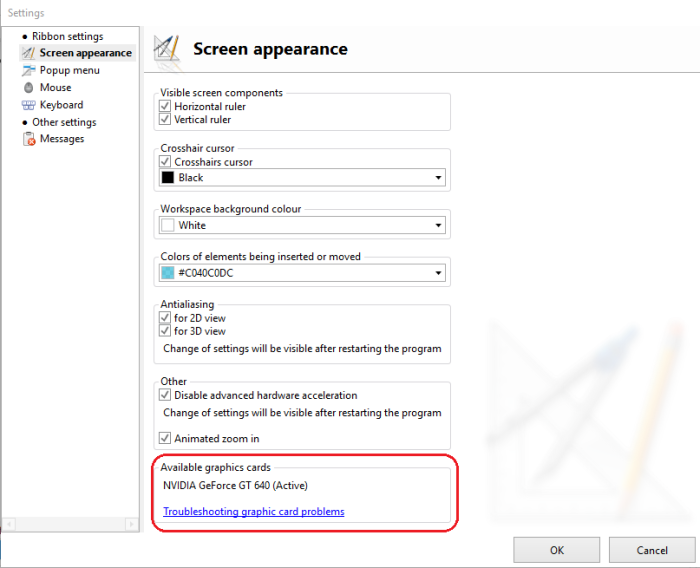
1. 可用的图形显卡

Global inclusion of not integrated graphic card
This way turns off the auto-managing mechanism of the group installed graphic cards, could influence the set in Windows system energy management schemes and reduce the work time in laptop’s batteries.
- Example of changes in nVidia graphic card driver.
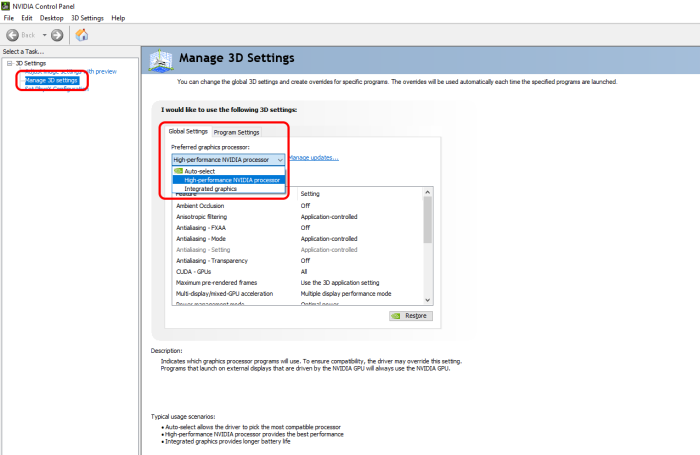
2. Global inclusion of not integrated graphic card

Inclusion of not integrated graphic card, only for InstalSystem 5 usage
This way turns off the auto-managing mechanism of the group installed graphic cards, could influence the set in Windows system energy management schemes and reduce the work time in laptop’s batteries.
NOTE:
This way must be set every time for installed program version and for each new installed InstalSystem 5 version.
- Example of changes in nVidia graphic card driver.
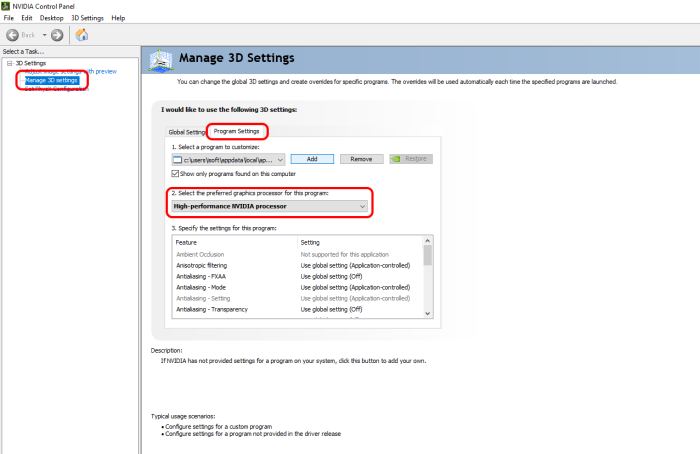
3. Turn on the not integrated graphic card only for the InstalSystem 5 version usage

Computers equipted only with integrated graphic card
Way out for suspition/turning off application - turning on checkbox
- Start the program, choose tab 文件 placed in the top left corner, then please choose the 设置.
- On the screened setting window, please choose 屏幕外观,
- Choose and confirm your changes by pressing OK.
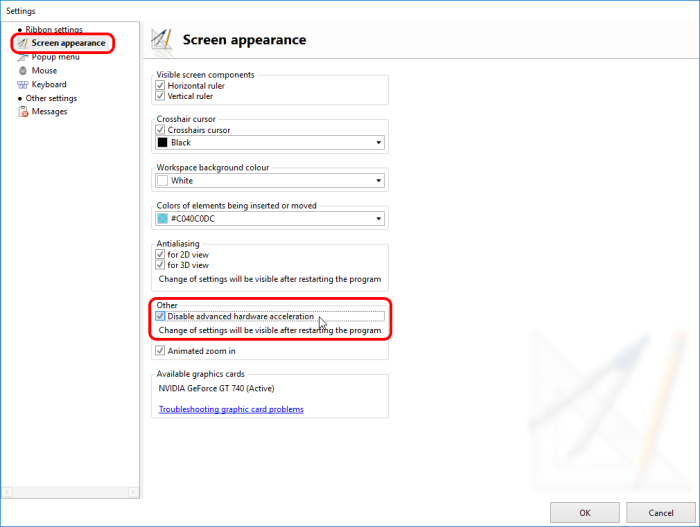
4. Turn on

Restarting the InstalSystem 5 Edytor is required.
Way out for black screen in 3D视图 or 2D编辑器 - Turning off the option Antialiasing
- Start the program, choose tab 文件 placed in the top left corner, then please choose the 设置.
- On the screened setting window, please choose 屏幕外观,
- Turn off the option Antialiasing 2D视图, Antialiasing 3D视图 and confirm the change, by clicking OK.
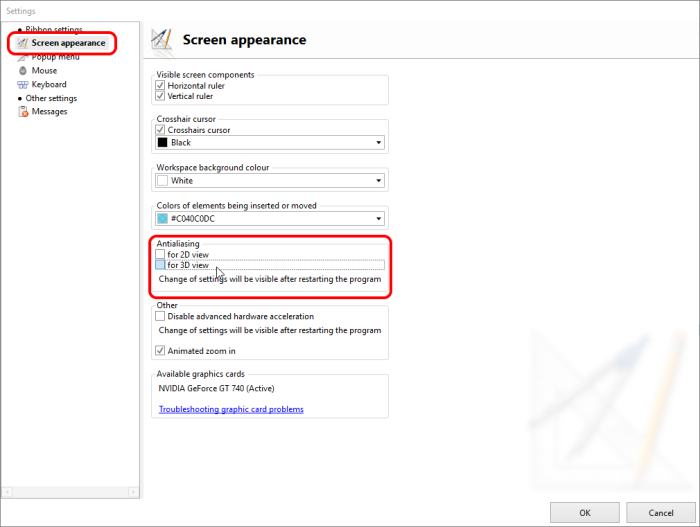
5. Turning off Antialiasing

Restarting the InstalSystem 5 Edytor is required.
Way out for black screen in 3D视图 or 2D编辑器 - Window work mode
- Turning on the window work mode in InstalSystem 5 Editor.
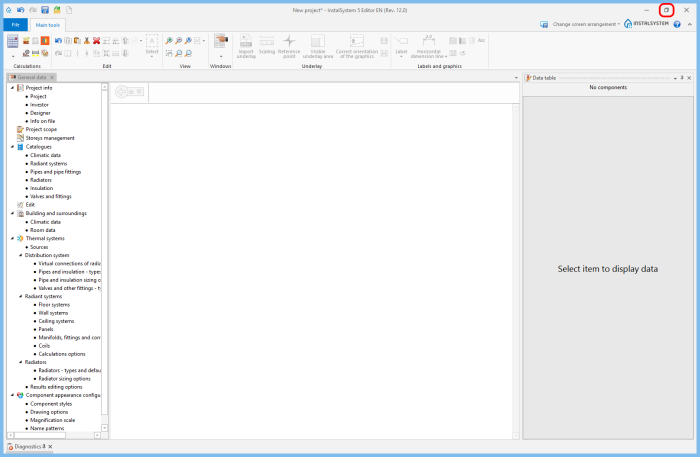
6. Work in window work mode
