部件外观和标签的设置:修订间差异
跳转到导航
跳转到搜索
(→选项卡) |
无编辑摘要 标签:手工回退 |
||
| (未显示2个用户的48个中间版本) | |||
| 第7行: | 第7行: | ||
|p4 =<!--gdy jest kolejny produkt handlowy, zamienić na->"produkt_handlowy3="--> | |p4 =<!--gdy jest kolejny produkt handlowy, zamienić na->"produkt_handlowy3="--> | ||
|category1 =InstalSystem 5#Funkcjonalności | |category1 =InstalSystem 5#Funkcjonalności | ||
|category_name1 = | |category_name1 =功能和工具 | ||
|c2 =<!--Jest kategoria -> zamienić na: "category2=" i uzupełnić link do sekcji kategorii na stronie głównej produktu--> | |c2 =<!--Jest kategoria -> zamienić na: "category2=" i uzupełnić link do sekcji kategorii na stronie głównej produktu--> | ||
|category_name2 =<!--podać nazwę kategorii--> | |category_name2 =<!--podać nazwę kategorii--> | ||
| 第22行: | 第22行: | ||
''<IS_TS id=ConfigurationElementsAppereance/>'' 部分中包含的功能允许为每个项目单独设置部件的外观(例如颜色或比例选择)和一些编辑参数。这样可以使图形的外观和工作流更好地适应正在进行的项目的特殊要求。 | ''<IS_TS id=ConfigurationElementsAppereance/>'' 部分中包含的功能允许为每个项目单独设置部件的外观(例如颜色或比例选择)和一些编辑参数。这样可以使图形的外观和工作流更好地适应正在进行的项目的特殊要求。 | ||
==视频教程== | |||
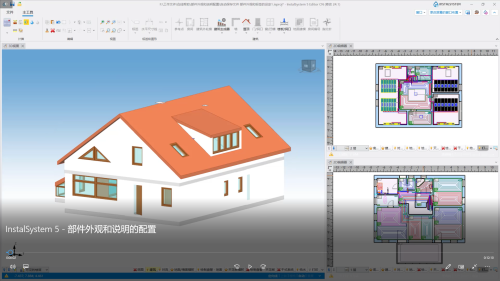
'''欢迎观看我们的视频教程,视频中有对本文所述的功能进行讲解和介绍的内容''' <br/> | |||
[[File:部件外观和说明的配置.png|500 px|left|thumb|'''[[视频:部件外观和说明的配置]]'''|link=https://www.bilibili.com/video/BV1Lo4y1e7Dm/]]<br clear="all"/> | |||
==在程序中的位置== | ==在程序中的位置== | ||
本功能在''<IS_TS id=rsDanogi/>'' 窗口,''<IS_TS id=ConfigurationElementsAppereance/>'' 选项卡。</br>[[File: | 本功能在''<IS_TS id=rsDanogi/>'' 窗口,''<IS_TS id=ConfigurationElementsAppereance/>'' 选项卡。</br>[[File:部件外观和配置.png |900 px|left|thumb|1. <IS_TS id=ConfigurationElementsAppereance/>]]<br clear="all"/> | ||
==应用举例== | ==应用举例== | ||
| 第31行: | 第35行: | ||
===<IS_TS id=strLblWygladCaption/>选项卡=== | ===<IS_TS id=strLblWygladCaption/>选项卡=== | ||
该''<IS_TS id=strLblWygladCaption/>'' 选项卡提供了可插入到图形编辑器中的所有部件的列表,允许选择部件,编辑它们在''<IS_TS id=GraphicalEdit/>'' 和在''<IS_TS id=View3D/>'' 中的外观。对于大多数部件,将显示两个窗口 - | 该''<IS_TS id=strLblWygladCaption/>'' 选项卡提供了可插入到图形编辑器中的所有部件的列表,允许选择部件,编辑它们在''<IS_TS id=GraphicalEdit/>'' 和在''<IS_TS id=View3D/>'' 中的外观。对于大多数部件,将显示两个窗口 - 一个定义部件的外观样式,另一个定义该部件标签的样式。但少数个别的部件或样式或标签编辑窗口呈灰色,不可编辑。</br>[[File:部件类型选型.png |900 px|left|thumb|2. <IS_TS id=strLblWygladCaption/>]]<br clear="all"/> | ||
在现有样式的范围内,可以: | 在现有样式的范围内,可以: | ||
*修改: | *修改: | ||
| 第42行: | 第46行: | ||
*删除 | *删除 | ||
*在样式列表中重新排序; | *在样式列表中重新排序; | ||
* | *恢复至程序默认的设置: | ||
**针对所有部件或所选部件, | **针对所有部件或所选部件, | ||
**分别地对于部件外观和标签外观; | **分别地对于部件外观和标签外观; | ||
*将配置的样式保存为模板文件,{{Info}} [[软件配置]] | *将配置的样式保存为模板文件,{{Info}} [[软件配置]] | ||
* | *从一模板中导入默认设置: | ||
**所有:所有部件的标签和样式, | **所有:所有部件的标签和样式, | ||
**仅针对所选的部件:部件的外观和标签的外观。 | **仅针对所选的部件:部件的外观和标签的外观。 | ||
| 第52行: | 第56行: | ||
====标签编辑==== | ====标签编辑==== | ||
对于标签,除了基本的样式修改功能外,还有一个''<IS_TS id=LabelEdition/>'' 窗口,它可以: | |||
* | * 指定标签的形状; | ||
* | * 指定标签的默认位置; | ||
* | * 文本格式; | ||
* | * 显示/隐藏标签与部件之间的连线,并配置线形。</br>[[File:部件外观设置1.png|900 px|left|thumb|3. <IS_TS id=LabelEdition/>]]<br clear="all"/> | ||
====样式选择基准==== | |||
= | 样式中,可以启用自动样式选择基准。在外观配置时,该基准将自动识别出符合该基准的部件,并自动将所设定的样式指定给该部件。如果一个部件设有多个基于同一基准所指定的样式,则程序将会自动将样式列表中第一个符合基准的样式指定给它。</br>[[File:自动选择的基准选择.png|900 px|left|thumb|4. 自动选择]]<br clear="all"/> | ||
====在参数表中选择样式==== | |||
==== | 可以在''参数表'' 中编辑部件及其标签的外观,方法是单独或批量指定样式,或在''<IS_TS id=strLblWygladCaption/>'' 中从预定义的样式中选择样式: | ||
*在平面图或3D视图中选择了部件后,在其''参数表'' 中的''<IS_TS id=Wyglad2D3D/>'' 和''<IS_TS id=Label/>'' 位置处进行选择:</br>[[File:参数表中修改样式.png |900 px|left|thumb|5. <IS_TS id=DataEditorTable/>-<IS_TS id=Wyglad2D3D/>]]<br clear="all"/> | |||
*在示意图中选择了部件,在其''参数表'' 中的''<IS_TS id=WygladRozw/>'' 和''<IS_TS id=Label/>(<IS_TS id=strSchemat/>)'' 位置处进行选择:</br>[[File:参数表中修改示意图部件样式.png |900 px|left|thumb|6. <IS_TS id=DataEditorTable/>-<IS_TS id=Label/>(<IS_TS id=strSchemat/>) ]]<br clear="all"/> | |||
===<IS_TS id=OpcjeRysowania/>=== | |||
根据所选的项目范围,可启用: | |||
* 从标准列表中选择绘图标准; | |||
* | * 勾选//不勾选与设计图纸外观和打印输出相关的其它选项。</br>[[File:出图选项.png|900 px|left|thumb|7. <IS_TS id=OpcjeRysowania/>]]<br clear="all"/> | ||
* | |||
===<IS_TS id=EnlargementScale/> | ===<IS_TS id=EnlargementScale/>=== | ||
此选项卡允许修改参考比例、更改管件图形尺寸,并分别考虑每种类型图纸的连接直径。</br>[[FILE:缩放比例.png|900 px|left|thumb|8. <IS_TS id=EnlargementScale/>]]<br clear="all"/> | |||
===<IS_TS id=rsPatterns/> | ===<IS_TS id=rsPatterns/>=== | ||
此选项允许对所选则的部件的自动名称样式进行编辑修改。当选定部件的''<IS_TS id=DataEditorTable/>'' 窗口中,上方有''<IS_TS id=stringSymbol/>'' ,''<IS_TS id=strs_stridISFMieszkanieNazwa/>''或其它标识符,并带有[[File:Komputerek.png|19 px|]] 状态时,将自动分配名称。单击每行中的[[File:Pytajnik.png|19 px|]] 图标,即可访问名称样式定义的说明。 | |||
显示的行取决于''<IS_TS id=ZakresProjektu/>'' 选项卡中所做的设置。</br>[[FILE:部件名称设置2.png|900 px|left|thumb|9. <IS_TS id=rsPatterns/>]]<br clear="all"/> | |||
===<IS_TS id=strGbxJednostkiCaption/> | ===<IS_TS id=strGbxJednostkiCaption/>=== | ||
根据所选的项目范围,此选项可做出如下选择: | |||
* | * 在热负荷计算中,对所使用的符号的设置; | ||
* | * 在给水系统中,对所使用的数量单位的设置。</br>[[FILE:计算单位的选择.png|900 px|left|thumb|10. <IS_TS id=strGbxJednostkiCaption/>]]<br clear="all"/> | ||
== | ==其它信息== | ||
=== | ===带有特殊外观编辑特色的部件=== | ||
* ''<IS_TS id=iNameKonstrPomieszczenie/>'' -''<IS_TS id=PrzyciemnieniePodlogi/>'' ,''<IS_TS id=PrzyciemnienieStropuPodwieszanego/>'' | * ''<IS_TS id=iNameKonstrPomieszczenie/>'' -''<IS_TS id=PrzyciemnieniePodlogi/>'' ,''<IS_TS id=PrzyciemnienieStropuPodwieszanego/>'' 。{{info}}'''看视频''' [https://www.bilibili.com/video/BV1hR4y1W7cS?t=479.5] | ||
* ''<IS_TS id=HolesInWall/>'' - 玻璃窗玻璃颜色和透明度的设置 | * ''<IS_TS id=HolesInWall/>'' - 玻璃窗玻璃颜色和透明度的设置 | ||
* ''<IS_TS id=KonfiguracjaWezownicy/>'' - ''<IS_TS id=RozneKoloryPetli/>'' ,''<IS_TS id=PrzylaczaMajaKolorWezownicy/>'' | * ''<IS_TS id=KonfiguracjaWezownicy/>'' - ''<IS_TS id=RozneKoloryPetli/>'' ,''<IS_TS id=PrzylaczaMajaKolorWezownicy/>'' 。{{info}}[[添加辐射系统盘管图#其它信息|其它信息]] | ||
<!-- Do not write text below this tag --> | <!-- Do not write text below this tag --> | ||
<br class="iwlinks"/>[[pl:Konfiguracja wyglądu elementów|Konfiguracja wyglądu elementów]] | <br class="iwlinks"/>[[pl:Konfiguracja wyglądu elementów|Konfiguracja wyglądu elementów]][[en:Component appearance and descriptions configuration|Component appearance and descriptions configuration]] | ||
2026年9月4日 (五) 23:15的最新版本
| 产品 | InstalSystem 5 |
| 文章类型 | 功能和工具 |
| 版本的最新内容 | 2022-12-01 |
说明
部件外观和说明配置 部分中包含的功能允许为每个项目单独设置部件的外观(例如颜色或比例选择)和一些编辑参数。这样可以使图形的外观和工作流更好地适应正在进行的项目的特殊要求。
视频教程
欢迎观看我们的视频教程,视频中有对本文所述的功能进行讲解和介绍的内容
在程序中的位置
本功能在一般参数 窗口,部件外观和说明配置 选项卡。

应用举例
部件类型选项卡
该部件类型 选项卡提供了可插入到图形编辑器中的所有部件的列表,允许选择部件,编辑它们在2D编辑器 和在3D视图 中的外观。对于大多数部件,将显示两个窗口 - 一个定义部件的外观样式,另一个定义该部件标签的样式。但少数个别的部件或样式或标签编辑窗口呈灰色,不可编辑。

在现有样式的范围内,可以:
- 修改:
- 线形、线色和线宽,
- 填充的颜色和透明度,
- 3D中的颜色和透明度;
- 更改名称;
- 创建部件的新样式;
- 复制
- 删除
- 在样式列表中重新排序;
- 恢复至程序默认的设置:
- 针对所有部件或所选部件,
- 分别地对于部件外观和标签外观;
- 将配置的样式保存为模板文件,更多信息,见: 软件配置
- 从一模板中导入默认设置:
- 所有:所有部件的标签和样式,
- 仅针对所选的部件:部件的外观和标签的外观。
标签编辑
对于标签,除了基本的样式修改功能外,还有一个编辑标签 窗口,它可以:
- 指定标签的形状;
- 指定标签的默认位置;
- 文本格式;
- 显示/隐藏标签与部件之间的连线,并配置线形。
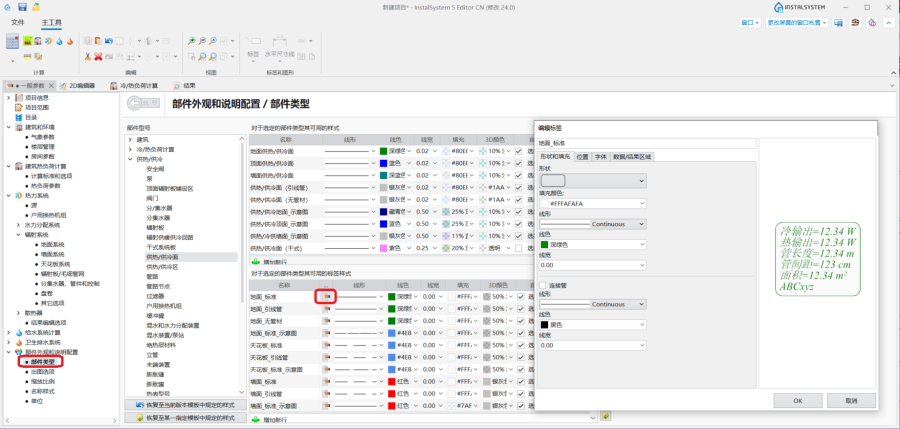
3. 编辑标签

样式选择基准
样式中,可以启用自动样式选择基准。在外观配置时,该基准将自动识别出符合该基准的部件,并自动将所设定的样式指定给该部件。如果一个部件设有多个基于同一基准所指定的样式,则程序将会自动将样式列表中第一个符合基准的样式指定给它。

在参数表中选择样式
可以在参数表 中编辑部件及其标签的外观,方法是单独或批量指定样式,或在部件类型 中从预定义的样式中选择样式:
- 在平面图或3D视图中选择了部件后,在其参数表 中的2D/3D视图样式 和标签 位置处进行选择:
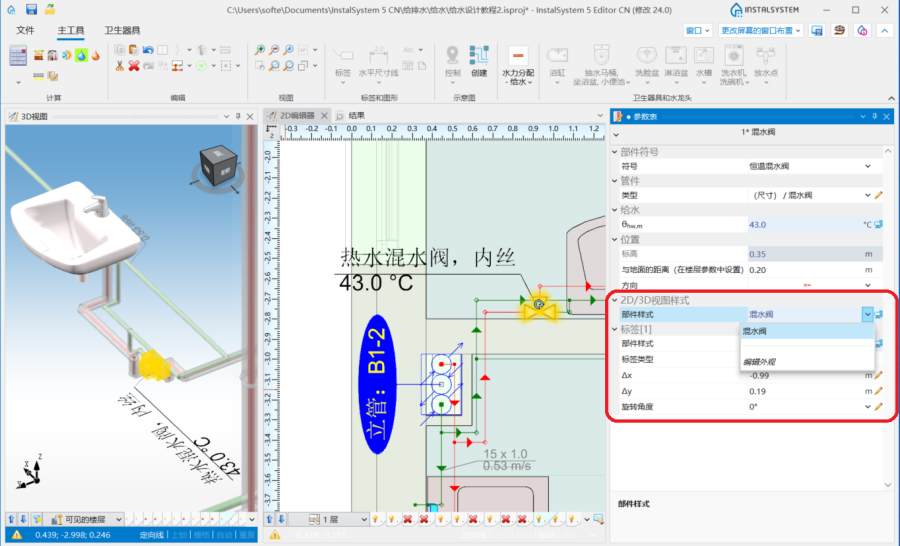
5. 参数表-2D/3D视图样式 - 在示意图中选择了部件,在其参数表 中的视图风格 (示意图) 和标签(示意图) 位置处进行选择:
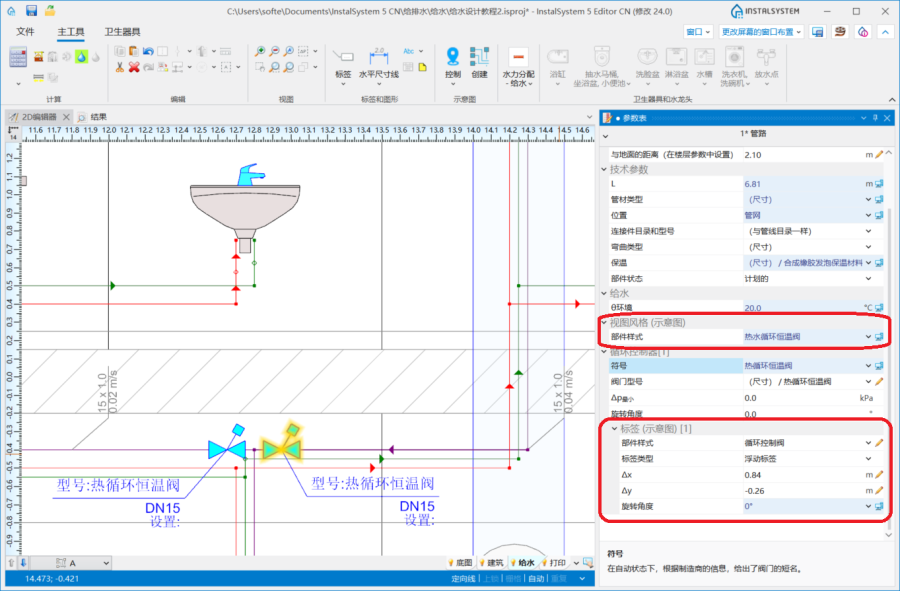
6. 参数表-标签(示意图)


出图选项
根据所选的项目范围,可启用:
- 从标准列表中选择绘图标准;
- 勾选//不勾选与设计图纸外观和打印输出相关的其它选项。
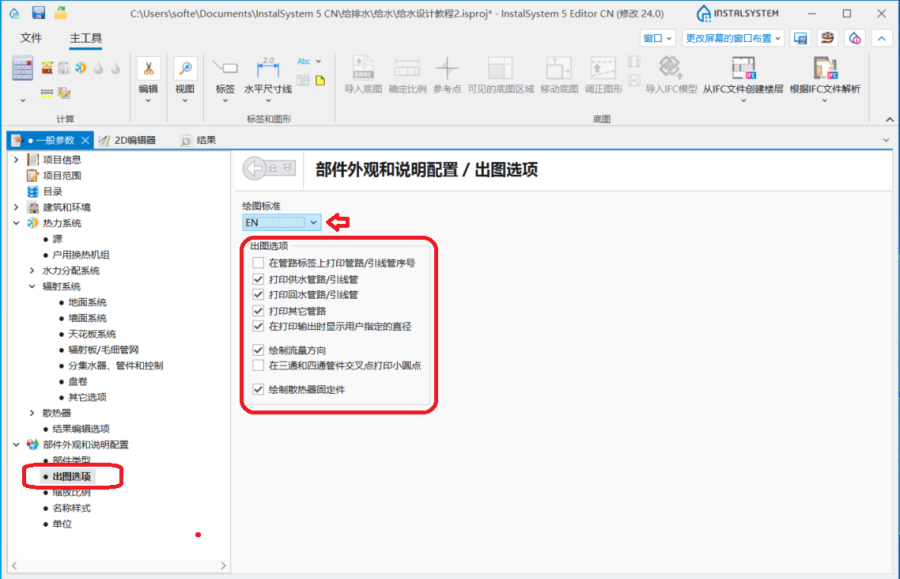
7. 出图选项

缩放比例
此选项卡允许修改参考比例、更改管件图形尺寸,并分别考虑每种类型图纸的连接直径。

名称样式
此选项允许对所选则的部件的自动名称样式进行编辑修改。当选定部件的参数表 窗口中,上方有符号 ,名称或其它标识符,并带有 状态时,将自动分配名称。单击每行中的
 图标,即可访问名称样式定义的说明。
显示的行取决于项目范围 选项卡中所做的设置。

单位
根据所选的项目范围,此选项可做出如下选择:
- 在热负荷计算中,对所使用的符号的设置;
- 在给水系统中,对所使用的数量单位的设置。
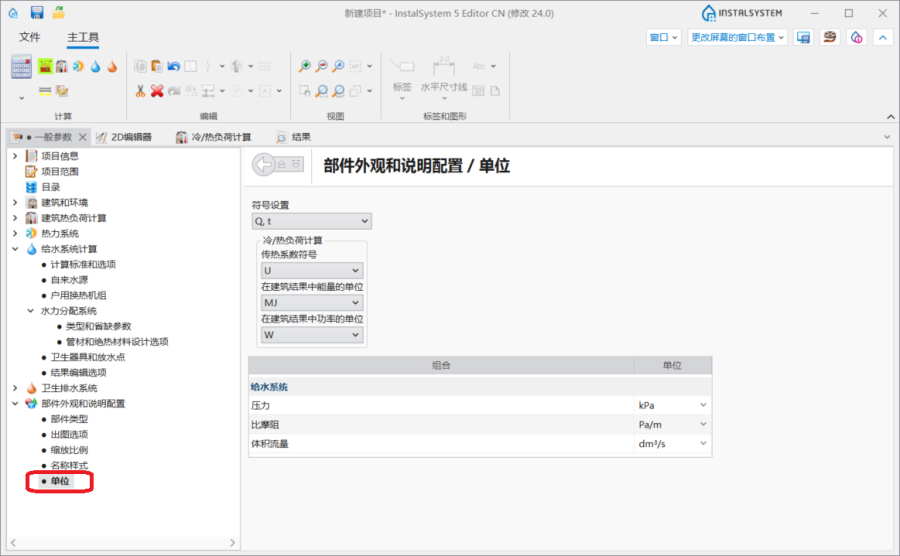
10. 单位

其它信息
带有特殊外观编辑特色的部件