项目和应用管理:修订间差异
跳转到导航
跳转到搜索
无编辑摘要 |
|||
| (未显示4个用户的61个中间版本) | |||
| 第1行: | 第1行: | ||
<!--Case 104715--> | |||
<IS_HELP id="HS94"/> | |||
{{Article table | |||
|commercial_product1=InstalSystem 5 | |||
|p2 =<!--gdy jest kolejny produkt handlowy, zamienić na->"produkt_handlowy2="--> | |||
|p3 =<!--gdy jest kolejny produkt handlowy, zamienić na->"produkt_handlowy3="--> | |||
|p4 =<!--gdy jest kolejny produkt handlowy, zamienić na->"produkt_handlowy3="--> | |||
|category1 =InstalSystem 5#Functionalities | |||
|category_name1 =功能 | |||
|c2 =<!--Jest kategoria -> zamienić na: "category2=" i uzupełnić link do sekcji kategorii na stronie głównej produktu--> | |||
|category_name2 =<!--podać nazwę kategorii "ZASTOSOWANIE"/"FUNKCJONALNOŚĆ"/...--> | |||
|c3 =<!--Jest kategoria -> zamienić na: "category3=" i uzupełnić link do sekcji kategorii na stronie głównej produktu--> | |||
|category_name3 =<!--podać nazwę kategorii "ZASTOSOWANIE"/"FUNKCJONALNOŚĆ"/...--> | |||
|version1 =[[Release notes InstalSystem 5#Wersja BETA 26 Rev. 16.2.1|IS 5.0 Beta 26]] | |||
|v2 =<!--Jest wersja -> zamienić na: "version2=" i uzupełnić link do sekcji RN danego produktu--> | |||
|v3 =<!--Jest wersja -> zamienić na: "version2=" i uzupełnić link do sekcji RN danego produktu--> | |||
|v4 =<!--Jest wersja -> zamienić na: "version2=" i uzupełnić link do sekcji RN danego produktu--> | |||
}} | |||
==说明== | ==说明== | ||
本文介绍了借助于''InstalSystem Manager'' 管理项目的方法,还展示了如何根据用户需求在不同程序版本中打开和创建项目。 | 本文介绍了借助于''InstalSystem Manager'' 管理项目的方法,还展示了如何根据用户需求在不同程序版本中打开和创建项目。 | ||
== | ==在程序中的位置== | ||
=== | ===创建一新项目和打开一现有项目=== | ||
* | * 可在''InstalSystem Manager 5 CN'' 窗口中创建一新项目和打开一现有项目。<br/>[[File:项目管理4.png|700 px|left|thumb|1. 在 InstalSystem Manager 5 CN 中创建新项目/打开项目]]<br clear="all"/><p>也可在''InstalSystem 5 编辑器'' 中创建一新项目和打开一现有项目:<br/>[[File:从编辑器中打开新文件.png|700 px|left|thumb|2. 在 InstalSystem 5 CN 编辑器中创建新项目/打开项目]]<br clear="all"/></p> | ||
=== | ===管理项目文件和其它文件=== | ||
* | * 在''InstalSystem 5 Manager'' 窗口中列出最近编辑的项目。<br/>[[File:项目管理1.png|900px|left|thumb|3. InstalSystem 5 Manager 中最近编辑的项目]]<br clear="all"/>也在''InstalSystem 5 CN 编辑器'' 中列出最近编辑的项目<br/>[[File:项目管理2.png|900px|left|thumb|4. InstalSystem 5 CN 编辑器 中最近编辑的项目]]<br clear="all"/> | ||
* | * 在''InstalSystem Manager 5'' 窗口的''项目管理'' 标签中有项目管理。<br/>[[File:项目管理5.png|750px|left|thumb|5. InstalSystem 5 Manager 中项目管理]]<br clear="all"/> | ||
=== | ==应用举例== | ||
* ''' | ===创建新项目和打开现有项目=== | ||
* ''' | * '''新建项目''' - 当创建一新项目时,有可能会指出下载的程序版本。默认情况下会指出最新的版本号。当创建一新文件时,用户需选择项目要使用的某一模板。<br/>{{信息}} [[软件配置#模板文件|模板文件]]。 | ||
* '''现有文件''' - 当打开一现有项目时,需选择进一步处理项目所要使用的程序版本。这就可使用文件创建时所使用的版本继续项目的设计。<br/> [[InstalSystem 5]] 软件包可导入 [http://en.help.instalsoft.com/InstalSystem_4 InstalSystem 4] 所创建的文件。<br/><br clear="all"/> | |||
{{#ev:youku|id_XMjY0MzE2NDI5Ng|900||||rel=0}} | |||
{{#ev: | ===管理项目文件和其它文件=== | ||
* '''最近编辑的文件''' - 该列表是自动创建的,它可快速找到最近编辑的文件,无论它们在什么位置。<br clear="all"/> 如果想让某一项目文件始终在列表的上方显示,而不管编辑的日期如何,则可使用'''图钉'''来达到此目的 - 点击所选项目文件边上的[[File:Pin-off-pl.png|32 px]],就可让文件始终保持在列表的顶部[[File:Pin-on-pl.png|32 px]]。 | |||
* '''项目管理''' - 当安装程序时,可选择程序默认的位置。建议每个项目(所设计的对象)有一个专门的子文件夹,用于各种 InstalSystem 项目文件版本(带有.isproj后缀的文件)和其它文件,如所用的底图的存储。优点是,对于*.isproj文件,会显示文件创建时所使用的软件包的版本号。<br clear="all"/> | |||
{{#ev:youku|id_XMjUxMDA2Mzg0MA|900||||rel=0}} | |||
[[Category:InstalSystem 5]] | [[Category:InstalSystem 5]] | ||
[[Category: | [[Category:功能]] | ||
[[pl:Zarządzanie projektami | |||
<!-- Do not write text below this tag --> | |||
<br class="iwlinks"/>[[pl:Zarządzanie projektami|Zarządzanie projektami]][[en:Project management|Project management]][[de:Project and application management|Project and application management]][[it:Gestione progetti e software|Gestione progetti e software]][[bg:Управление на проект и приложение|Управление на проект и приложение]] | |||
2026年2月23日 (一) 16:10的最新版本
| 产品 | InstalSystem 5 |
| 文章类型 | 功能 |
| 版本的最新内容 | IS 5.0 Beta 26 |
说明
本文介绍了借助于InstalSystem Manager 管理项目的方法,还展示了如何根据用户需求在不同程序版本中打开和创建项目。
在程序中的位置
创建一新项目和打开一现有项目
- 可在InstalSystem Manager 5 CN 窗口中创建一新项目和打开一现有项目。
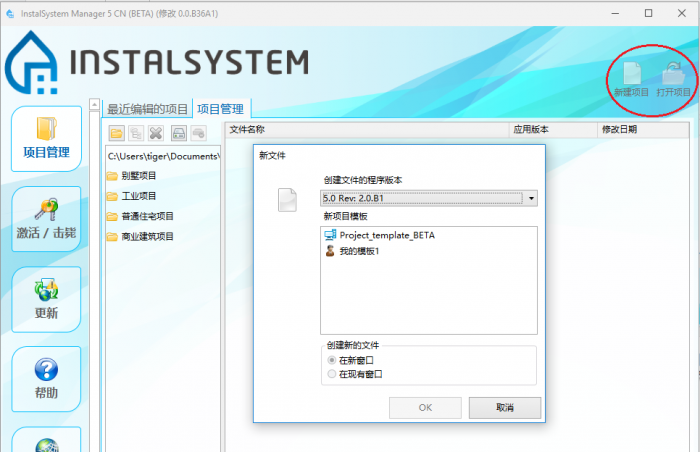
1. 在 InstalSystem Manager 5 CN 中创建新项目/打开项目 也可在InstalSystem 5 编辑器 中创建一新项目和打开一现有项目:
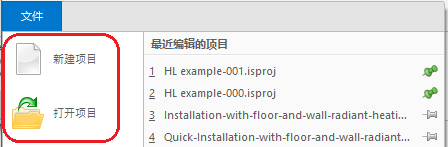
2. 在 InstalSystem 5 CN 编辑器中创建新项目/打开项目


管理项目文件和其它文件
- 在InstalSystem 5 Manager 窗口中列出最近编辑的项目。
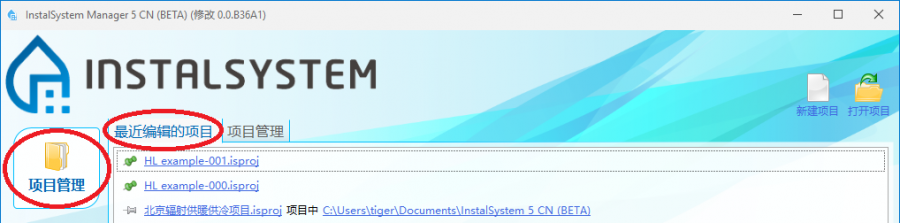
3. InstalSystem 5 Manager 中最近编辑的项目
也在InstalSystem 5 CN 编辑器 中列出最近编辑的项目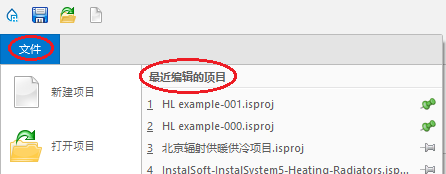
4. InstalSystem 5 CN 编辑器 中最近编辑的项目 - 在InstalSystem Manager 5 窗口的项目管理 标签中有项目管理。
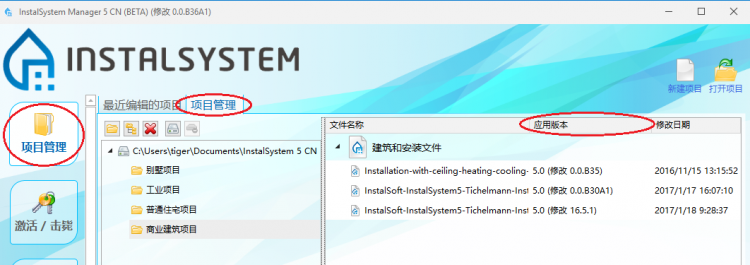
5. InstalSystem 5 Manager 中项目管理


应用举例
创建新项目和打开现有项目
- 新建项目 - 当创建一新项目时,有可能会指出下载的程序版本。默认情况下会指出最新的版本号。当创建一新文件时,用户需选择项目要使用的某一模板。
更多信息,见: 模板文件。 - 现有文件 - 当打开一现有项目时,需选择进一步处理项目所要使用的程序版本。这就可使用文件创建时所使用的版本继续项目的设计。
InstalSystem 5 软件包可导入 InstalSystem 4 所创建的文件。
管理项目文件和其它文件
- 最近编辑的文件 - 该列表是自动创建的,它可快速找到最近编辑的文件,无论它们在什么位置。
如果想让某一项目文件始终在列表的上方显示,而不管编辑的日期如何,则可使用图钉来达到此目的 - 点击所选项目文件边上的 ,就可让文件始终保持在列表的顶部
 。
。 - 项目管理 - 当安装程序时,可选择程序默认的位置。建议每个项目(所设计的对象)有一个专门的子文件夹,用于各种 InstalSystem 项目文件版本(带有.isproj后缀的文件)和其它文件,如所用的底图的存储。优点是,对于*.isproj文件,会显示文件创建时所使用的软件包的版本号。

