如何打印出高质量的PDF文件:修订间差异
跳转到导航
跳转到搜索
无编辑摘要 |
|||
| (未显示同一用户的8个中间版本) | |||
| 第5行: | 第5行: | ||
|p4 = | |p4 = | ||
|category1 =InstalSystem 5#Typowe problemy | |category1 =InstalSystem 5#Typowe problemy | ||
|category_name1 = | |category_name1 =提示和技巧 | ||
|c2 = | |c2 = | ||
|category_name2 = | |category_name2 = | ||
| 第20行: | 第20行: | ||
==解决方案== | ==解决方案== | ||
使用操作系统中预先安装的专门用于生成PDF格式文件的工具之一,如''Microsoft print to PDF'' ,就可获得高质量PDF格式图形文件的打印输出。 | |||
为此,请按如下步骤进行操作: | 为此,请按如下步骤进行操作: | ||
# 进入''<IS_TS id=Printouts/>'' 窗口并从屏幕左侧的''图形打印'' 列表中选择其中一个图形文件 | |||
# 从打印输出窗口中选择''打印'' <br>[[File:打印机.png|700 px|left|thumb|1. 打印]]<br clear="all"/> | |||
# 显示打印窗口。在打印机列表中,选择一个PDF虚拟打印机,例如''Microsoft print to PDF''。如果要确认,请单击''打印'' 按钮 | |||
# | # 在最后一步中,输入正在创建的PDF文件的名称,然后选择''保存'' 进行确认。 | ||
# | |||
# | |||
# | |||
[[pl:Jak uzyskać lepszą jakość wynikowych plików PDF]] | [[pl:Jak uzyskać lepszą jakość wynikowych plików PDF]] | ||
[[Category:InstalSystem 5]] | [[Category:InstalSystem 5]] | ||
[[Category: | [[Category:提示和技巧]] | ||
2022年7月29日 (五) 01:35的最新版本
| 产品 | InstalSystem 5 |
| 文章类型 | 提示和技巧 |
| 版本的最新内容 | GOLD Rev. 7.3 |
问题描述
将图形打印输出保存到PDF文件中时,使用内置工具生成的PDF文件,在某些情况下可能导致输出的PDF文件质量差 - 图形元素的分辨率比其原始分辨率低。
解决方案
使用操作系统中预先安装的专门用于生成PDF格式文件的工具之一,如Microsoft print to PDF ,就可获得高质量PDF格式图形文件的打印输出。
为此,请按如下步骤进行操作:
- 进入打印输出 窗口并从屏幕左侧的图形打印 列表中选择其中一个图形文件
- 从打印输出窗口中选择打印
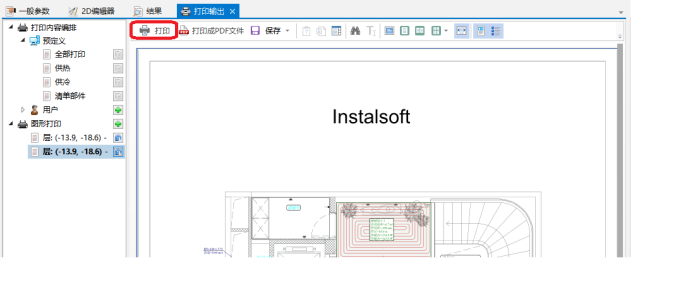
1. 打印 - 显示打印窗口。在打印机列表中,选择一个PDF虚拟打印机,例如Microsoft print to PDF。如果要确认,请单击打印 按钮
- 在最后一步中,输入正在创建的PDF文件的名称,然后选择保存 进行确认。
